 Delorion
Lock accounts and manage passwords
Choose a password reset, lock or unlock accounts, and read the result for each selected user.
Applies to userXpress 2.0.0.0
Download PDF
- This pageLock accounts and manage passwords
- This sectionUsers
- Full manualuserXpress documentation
On this page
Use the Users menu in the Global User Table to control logon access for selected accounts.
- Lock suspends access to an account. Unlock removes its lock when the user can resume work.
- Initial Password resets a forgotten password. A dialog user changes this password at the next password logon.
- Productive Password sets a password the account can continue using, for example for a technical connection.
- Deactivate Password disables password logon, for example for an account that uses SNC single sign-on.
Select the accounts before choosing an action. A password entered for several selected accounts is applied to all of them. Use separate selections when accounts need different passwords.
Lock or unlock users
- Select the accounts in the Global User Table.
- Choose Users → Lock or Users → Unlock.
userXpress refreshes the affected accounts after the operation. For a failure, open the account’s Full Message.
When the selection contains only centrally managed accounts on a CUA central system, these actions set or remove the global CUA lock. Select central accounts separately when you intend to change that global lock. A selection that also contains child-system or non-CUA accounts uses the local lock action.
Locking an account prevents logon. To end an existing session, use Log User Off.
Set an initial password
Use an initial password when the user needs to choose a new password at the next logon.
When the initial-password dialog is disabled in Settings, the command applies the saved default immediately. Use Users → Unlock separately when unlocking is also required.
- Select the accounts in the Global User Table.
- Choose Users → Password → Initial Password.
- Enter the password in Password and Re-enter. Show password reveals both entries.
- Select Unlock user to unlock the accounts as part of the reset. Leave it cleared to reset the password while retaining the lock.
- Choose OK.
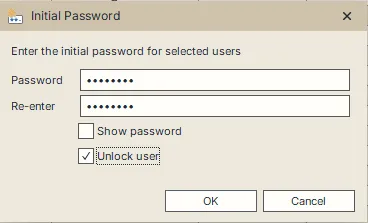
If the entries differ, the dialog clears both fields and displays The passwords do not match. Enter the password again in both fields.
The password reset and the unlock have separate results. If the reset succeeds but unlocking a locked account fails, the account has the new password and remains locked. Resolve the unlock error and use Users → Unlock for that account.
Set a productive password
Use a productive password when the account needs a usable password without an initial-password change at its next logon.
When the productive-password dialog is disabled in Settings, the command applies the saved default immediately.
- Select the accounts in the Global User Table.
- Choose Users → Password → Productive Password.
- Enter the password in Password and Re-enter. Show password reveals both entries.
- Choose OK.
SAP’s password policy applies to the new password. If a password is rejected, point to a text cell in the affected row to read the reason.
A productive-password change first resets the account to a temporary initial password, then sets the requested password. If the second step fails, the old password has already been replaced. Set a new Initial Password for the affected account to restore a known password.
Deactivate a password
Use this action to disable password logon while retaining the account’s configured single sign-on access.
- Select the accounts in the Global User Table.
- Choose Users → Password → Deactivate Password.
The command deactivates their passwords and refreshes the account information. To allow password logon again, set an initial password or a productive password.
Set password defaults
Save defaults when you regularly use the same initial or productive password. The two defaults are independent.
- Open Settings → Passwords.
- In Initial password or Productive password, enter the default password twice.
- Choose how the corresponding command uses it:
- Keep Show Initial Password dialog window or Show Production Password dialog window selected to open a dialog with the saved value filled in. You can change it for that operation.
- Clear the corresponding option to apply the saved value immediately when you choose the command.
- Choose OK to save the settings.
When no default is saved, userXpress enables the corresponding dialog so you can enter a password. Changing a password in the operation dialog leaves the saved default unchanged.
Read the operation result
The status bar shows operation messages. A row with an error has a tooltip describing the failure. Point to a text cell in that row to read it.
For the SAP messages belonging to one account:
- Select that account alone.
- Right-click its row and choose Full Message.
Accounts are processed separately. A successful change remains in effect when another account fails. Resolve the reported problem and select only the affected accounts for a retry.
A display-refresh error means userXpress could not retrieve the updated account information. Use Users → Refresh to reload it. The refresh error does not undo a successful password or lock change.
Accounts managed through CUA
Central User Administration (CUA) determines which changes can be made in each connected system. When CUA prevents an action, userXpress lists the accounts it will omit and asks whether to continue.
- Choose Yes to process the remaining accounts.
- Choose No to cancel the operation.
For an omitted account, perform the change through the connection responsible for that setting in your CUA landscape.