 Delorion
Connect to SAP
Connect a SAP client, save a logon for AutoStart, update saved credentials and disconnect from the workspace.
Applies to userXpress 2.0.0.0
Download PDF
- This pageConnect to SAP
- This sectionGet started
- Full manualuserXpress documentation
Connect each SAP client you want to work with. The Global User Table combines their accounts, and the Global Role Table combines their roles.
Use Connected Systems in the Control Panel for a connection you need now. Save a connection in AutoStart Systems when you work with the same client regularly.
userXpress detects the SAP Logon connection file automatically. If you use a different connection list, select that file in Settings.
Connect a system
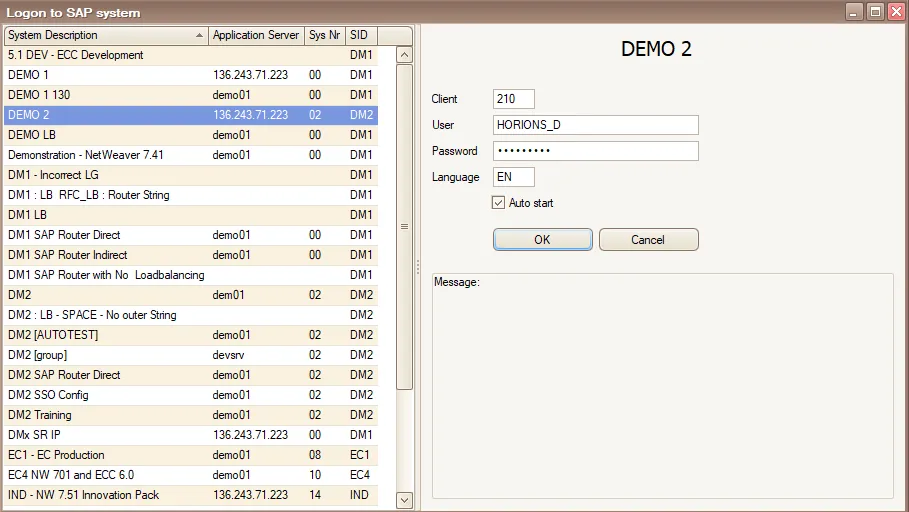
- In Control Panel, open Connected Systems and choose Add.
- Select the SAP system from the list.
- Enter the three-digit Client. Keep the displayed Language or enter the logon language you need.
- For password authentication, enter your SAP User and Password. For a system configured for SNC single sign-on, userXpress uses your sign-on identity.
- Select Auto start to save the connection for future sessions. Leave it clear for a connection you need only for this session.
- Choose OK. userXpress connects and loads the client’s data.
The connection appears in Connected Systems. Its accounts appear in the Global User Table. With role management enabled, its roles appear in the Global Role Table.
For example, to work with clients 100 and 200 in the same system, add each client separately. Each connection uses the SAP user you supplied for that client.
For the connection lists and their status columns, see Control Panel.
Manage AutoStart
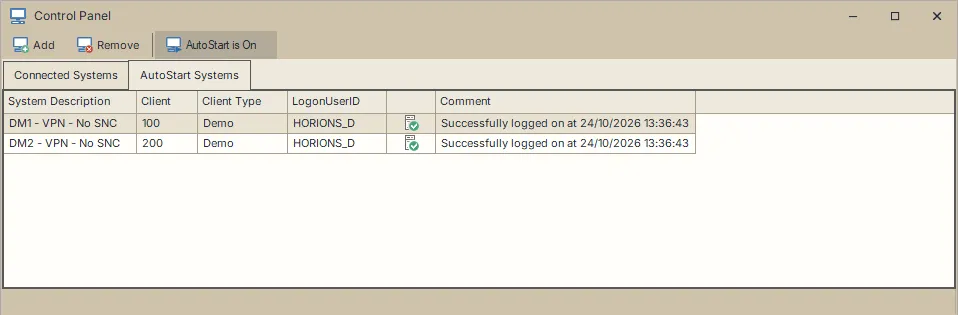
AutoStart reconnects your saved clients when you start userXpress. The loading window shows progress for each client. The toolbar shows AutoStart is On or AutoStart is Off for the whole saved list.
Save another connection
- Open Control Panel → AutoStart Systems and choose Add.
- Select the system and enter the client, language and logon details as described above.
- Select Auto start.
- Choose OK to save the entry and connect.
To use the saved list at startup, turn on AutoStart as described below.
Turn AutoStart on or off
Choose AutoStart is Off to turn it on. In the prompt that follows:
- Choose Yes to connect the saved clients now.
- Choose No to leave automatic connection until the next application start.
Choose AutoStart is On to turn it off. The saved entries and connections already open remain available. This is useful when you want to choose a smaller set of clients for your next session.
With AutoStart off, double-click a saved entry to connect that client. For password authentication, choose OK in AutoStart Logon. For SNC single sign-on, choose Yes in the connection prompt.
Update a saved logon
Use this procedure after changing your SAP password or when you need to connect with a different SAP user.
- If the client is connected, select it in Connected Systems and choose Remove.
- Open AutoStart Systems and double-click the saved entry.
- In AutoStart Logon, update User, Password or Language.
- Choose OK. userXpress saves the logon details and connects.
For SNC single sign-on, double-clicking the entry offers to connect using your sign-on identity. Manage that authentication through the SNC configuration.
Remove a saved startup entry
- In AutoStart Systems, select the entry and choose Remove.
- Choose Yes in the confirmation naming the system and client.
The entry leaves the AutoStart list. An open connection stays in Connected Systems until you disconnect it.
Disconnect
Disconnect a client when you have finished working with it or want to reconnect under a different SAP user.
In Control Panel → Connected Systems, select the connection and choose Remove. userXpress closes the connection and removes that client’s data from the global tables. Other connected clients remain available.
A saved AutoStart entry remains available for the next session. To stop opening that connection at startup, also remove its saved entry.
If a connection fails
The logon dialog displays rejected logon details. For an AutoStart attempt, read the row’s Comment in AutoStart Systems.
| Message or symptom | What to do |
|---|---|
| The saved password is rejected after a password change | Update the saved logon. |
| A saved system cannot be found in the SAP Logon connection file | Remove its AutoStart entry. Choose Add and select the system under its new name. |
| The connection file cannot be found | Select the connection file used by SAP Logon. |
| The SNC library is missing | Set Settings → Connections → SNC library as described in Configure SNC. |
| SAP reports missing authorization while loading data | Follow the authorization troubleshooting procedure. |
| The client remains unavailable | Include the system, client and exact connection message in a support request. |