 Delorion
Workbook fields and formats
Required headings, batch layouts, date formats and optional fields for a Mass User Create workbook.
Applies to userXpress 2.0.0.0
Download PDF
- This pageWorkbook fields and formats
- This sectionReference
- Full manualuserXpress documentation
On this page
Start from the example workbook saved through Mass User Create → Help → Save Example Mass User Create Spreadsheet. Preserve its headings and underscores. Use the exact spelling shown below even where a check accepts other letter casing.
Layout and required fields
Set cell A1 to Vertical or Horizontal. A Vertical batch shares role and parameter lists among its users. A Horizontal batch places those assignments along each user’s row. Keep parameter IDs paired with their values.
Separate batches with two blank rows, following the example workbook. Do not insert blank columns between populated columns: a blank header can be interpreted as the end of the field list.
| Field | Purpose | Example |
|---|---|---|
Comment |
Identifies the batch in the worksheet | Demo team |
System |
Connection entry used for the target system | Example SAP system |
SID |
Target system identifier | ABC |
Client |
Target client within that system | 100 |
User_ID |
Account to create | DEMO_J |
The System, SID and Client columns form a target list for the batch. Every user in that batch is processed in every listed target, in both Horizontal and Vertical layouts. A target on a user’s row is not limited to that user.
Enter each target once. Do not repeat the same target alongside all user rows.
Two users and two distinct targets produce four intended creations. To give users different destinations, put them in separate batches with two blank rows between batches.
Use Comment to name the batch, for example Finance team. That name appears with the account results.
Use a three-character alphanumeric SID and a three-digit Client such as 010. Preserve leading zeroes. The System entry must match a configured connection, and each SID entry needs its corresponding client value.
Apart from the layout marker in A1, fields can appear in any order. Keep the related role-date and parameter columns together as described below.
Repeatable assignments
In a Vertical batch, put the shared roles, profiles and parameter pairs down their respective columns. Every user in that batch receives the shared assignments in each listed target client. Keep user-specific contact/default values on the user’s row.
In a Horizontal batch, put assignments across each user’s row. The columns Roles, Role_Valid_From, Role_Valid_To, Profiles, Parameter_ID and Parameter_Value can repeat. Other duplicate headings are rejected. Use Profiles (plural).
Keep each parameter’s Parameter_Value immediately after its Parameter_ID. Repeat the pair to provide another parameter. A missing value is a blank value, not an instruction to skip the parameter. Preserve significant spaces when a SAP parameter requires them.
Place a role’s validity columns immediately after that Roles column, before the next role.
If role validity is not supplied, userXpress defaults the start to the current date and the end to 31 December 9999. Supply explicit dates when that is not appropriate.
For example, a Vertical batch containing two users and two demo role rows gives both roles to both users. In a Horizontal batch, fill a role cell only on the row of the user who should receive it.
Horizontal profile restriction: include the Parameter_ID heading when using Profiles in a Horizontal sheet. Its cells can be empty when no parameters are needed. Without that heading, the profiles are omitted. Alternatively, use a Vertical batch.
Dates
Format account and role-validity date cells as dd/mm/yyyy and enter spreadsheet dates. For example, 23/09/2026 means 23 September 2026.
This applies to Valid_From, Valid_To, Role_Valid_From and Role_Valid_To. Keep this cell format when pasting dates from another workbook. The Date_Format field controls the SAP user’s display preference and is separate from the workbook’s date-cell format.
Choose formats and user types
Use the drop-down choices for Date_Format, Decimal_Format, Time_Format and User_Type. The description makes the choice readable, and the code in brackets identifies the SAP value. You can also enter the SAP code directly.
- Date and time formats: Choose the display style the new user needs. A blank cell leaves that preference unspecified.
- Decimal format: Choose the notation explicitly, including 1.234.567,89 [blank] when that is required. In a Horizontal sheet, an empty cell leaves the preference unspecified. In a Vertical sheet, an empty cell in a
Decimal_Formatcolumn selects1.234.567,89. - User type: Choose Dialog [A] for an individual who signs in interactively. The other choices are System [B], Communications [C], Reference [L] and Service [S]. An empty cell creates a Dialog user.
The example workbook and files opened in Mass User Create also provide connected-client choices for Title, Timezone, Security_Policy, Logon_Lang and User_Group. These combine values from the connected clients. Run Check → Format & Systems to check their availability in every target.
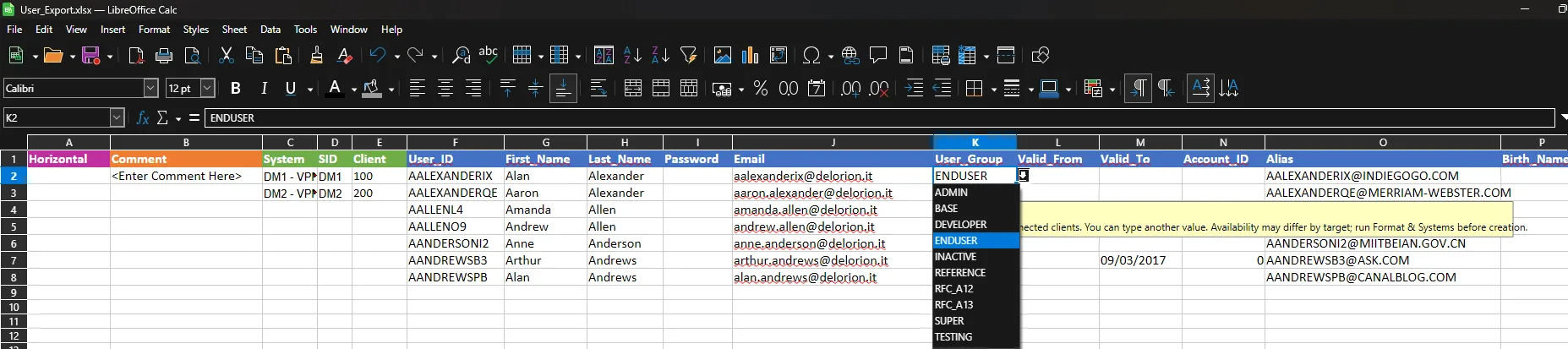
The User_Group list is open in a Horizontal workbook, with ENDUSER selected.
If the Creation dropdowns message reports that choices could not be loaded, type the required values directly. Save the workbook to retain the available lists for use in Excel.
Identity and contact fields
| Field | Purpose |
|---|---|
Account_ID |
Account number |
Alias |
Alternative account identifier |
Birth_Name |
Birth name |
First_Name |
First name |
Last_Name |
Last name. The user ID is used when no last name is supplied. |
Middle_Name |
Middle name |
Title |
Form of address |
Email |
Email address, for example jane.demo@example.com |
Telephone_Cell |
Mobile telephone number |
Telephone_Land |
Landline telephone number |
Building |
Building identifier |
Department |
Department |
Floor |
Floor |
Function |
Job function |
Room |
Room |
Cost_Center |
Cost center |
Access and security fields
| Field | Purpose |
|---|---|
Password |
Initial password. If omitted or blank, the workflow requests a generated password from SAP. |
User_Type |
Select a user type or enter A, B, C, L or S. Blank creates a Dialog user. |
User_Group |
Authorization-check user group |
Reference_User |
Reference user for additional authorization |
Roles |
Roles to assign, following the selected layout |
Role_Valid_From |
Role-assignment start date |
Role_Valid_To |
Role-assignment end date |
Profiles |
Profiles to assign, following the layout rules above. |
Security_Policy |
Security policy configured in the target client |
Valid_From |
Account validity start date |
Valid_To |
Account validity end date |
SNC_Name |
Full SNC identity name |
SNC_Gui_Flag |
Enter X to permit password logon for SAP GUI with SNC. Blank leaves the setting unspecified. |
The SNC password-logon choice also depends on the SAP system’s SNC settings. To change the choice after creation, use Permit password logon for SAP GUI in that guide.
SAP applies the target client’s password policy when creating the account. A rejected password is reported in the account’s creation messages.
Defaults and parameters
| Field | Purpose |
|---|---|
Date_Format |
Choose a date-display style or enter its SAP code, 1–6. |
Decimal_Format |
Choose 1.234.567,89 [blank], 1,234,567.89 [X] or 1 234 567,89 [Y]. See the blank-cell rules above. |
Time_Format |
0 uses 24-hour time. 1/2 use 12-hour time with AM/PM or am/pm. 3/4 use hours 0–11 with AM/PM or am/pm. |
Logon_Lang |
Default logon language |
Output_Device |
Default output device |
Start_Menu |
Initial area menu |
Timezone |
SAP time-zone key valid in the target system |
Parameter_ID |
Parameter identifier |
Parameter_Value |
Value for its paired parameter identifier |
Use SAP keys for Timezone, Logon_Lang, Output_Device and Start_Menu. The connected-client drop-downs supply available keys for time zone and language.
Reserved fields
Add_Remove, Profile_Valid_From and Profile_Valid_To are not supported by this creation workflow. Leave them out of new workbooks.
Validate before creating
Run Check → Format & Systems on the active worksheet. Correct any reported problems using Messages and the highlighted cells, then run the check again. Continue with Mass User Create when Accounts → Start becomes available.