 Delorion
Settings and session tools
Choose workspace and connection preferences, save password defaults, change your passphrase and open activity or support information.
Applies to userXpress 2.0.0.0
Download PDF
- This pageSettings and session tools
- This sectionGet started
- Full manualuserXpress documentation
On this page
Open Settings on the main toolbar to choose how userXpress looks, loads connections and remembers your workspace.
- Select the tab for the settings you want to change.
- Change the options described below.
- Choose Apply to save and keep Settings open, or OK to save and close it.
Cancel closes Settings without applying unsaved edits. Changes already saved with Apply remain saved. The grouped-menu switch and Set Application Defaults take effect immediately, as described below.
General
Use Settings → General to change the application theme and status colours.
-
Select Application Theme: Choose an appearance. Selecting a theme previews it immediately. Choose Apply or OK to keep it. Cancel restores the last saved theme.
-
Warning text and Warning background: Choose the colours for warning rows in the Global User Table. Save, then restart userXpress to use the new colours.
-
Error text and Error background: Choose the colours for error rows in the Global User Table. Save, then restart userXpress to use the new colours.
Restore application defaults
Use Settings → General → Set Application Defaults to return application preferences to their defaults. The reset includes the theme, table preferences, startup loading, connection monitoring, activity recording and password-dialog settings. It also clears saved initial and productive password defaults and the SNC library override.
- Choose Yes in the confirmation. The default preferences are saved immediately.
- Close Settings with Cancel. This leaves the reset preferences saved.
- Restart userXpress to use the reset display and connection preferences.
To keep your preferences, choose No in the reset confirmation.
Appearance and table behavior
Open Settings → Workspace when you want to keep your column arrangement, return to the same filter next time or change the Global User Table menu.
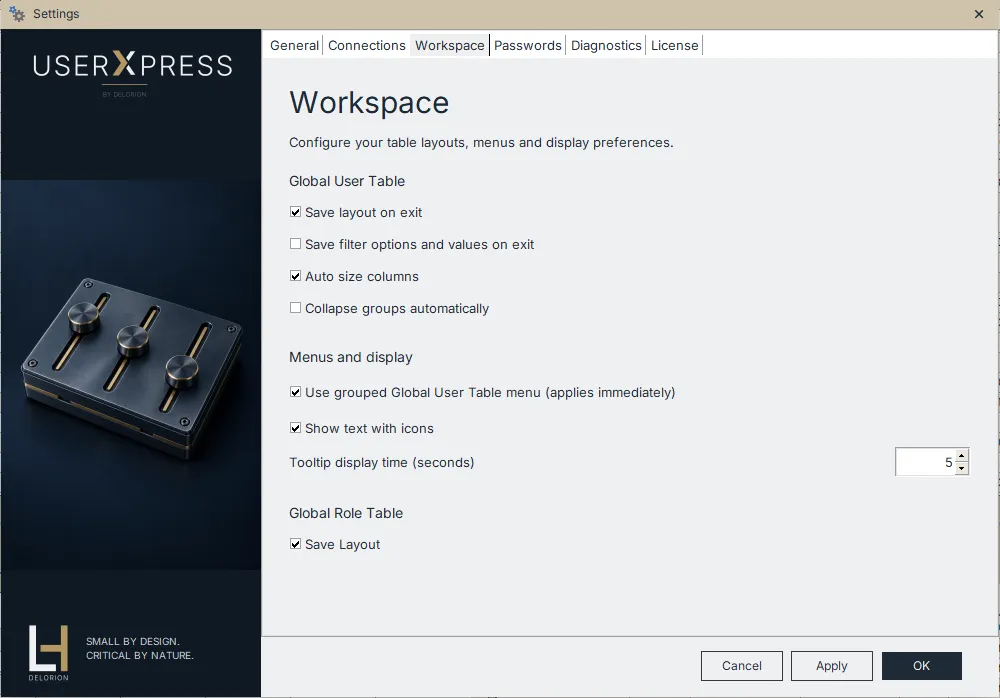
Global User Table
-
Save layout on exit: Saves the table’s column arrangement, widths, sorting and grouping when userXpress closes. Use it to keep a layout suited to your work. Clearing it stops subsequent layout changes from replacing the saved layout.
-
Save filter options and values on exit: Includes the active column filter in the saved user-table layout. Select Save layout on exit as well. Clear the filter-saving option to save the layout without those filter conditions. Use My Queries to keep several named filters.
-
Auto size columns: Fits columns to their contents when the user and role tables open. Clear it to allow the tables to extend horizontally. Save and restart userXpress after changing this option.
-
Collapse groups automatically: Opens grouped user and role tables with their groups collapsed. Clear it to expand groups automatically. Save and restart userXpress after changing this option.
Menus and display
-
Use grouped Global User Table menu (applies immediately): Groups commands under Users, Roles, Show Me, My Queries, Export and Other. The guides use this arrangement. Clearing it restores the ungrouped menu. Switching this option applies and saves it immediately, including when you later choose Cancel.
-
Show text with icons: Adds names such as Dialog and System beside the user-type icons. Save and restart userXpress after changing this option.
-
Tooltip display time (seconds): Sets how long a user-table message remains visible when you point to a text cell. Increase it when you need more time to read a message.
Global Role Table
Select Save Layout to save the role table’s column arrangement, widths, sorting and grouping when userXpress closes. Clear it to leave the previously saved layout unchanged.
Arrange the workspace windows
Use Reset Layout on the main toolbar to choose how much space each window uses:
- Default places the Global User Table across the top, with the Global Role Table and Control Panel below it.
- User maximizes the Global User Table and minimizes the other two windows.
- Role maximizes the Global Role Table and minimizes the other two windows.
Use Default to return to all three windows after working with one table maximized.
Connections
Open Settings → Connections to control automatic loading, SAP GUI windows and connection monitoring. For saved logons, use Control Panel → AutoStart Systems.
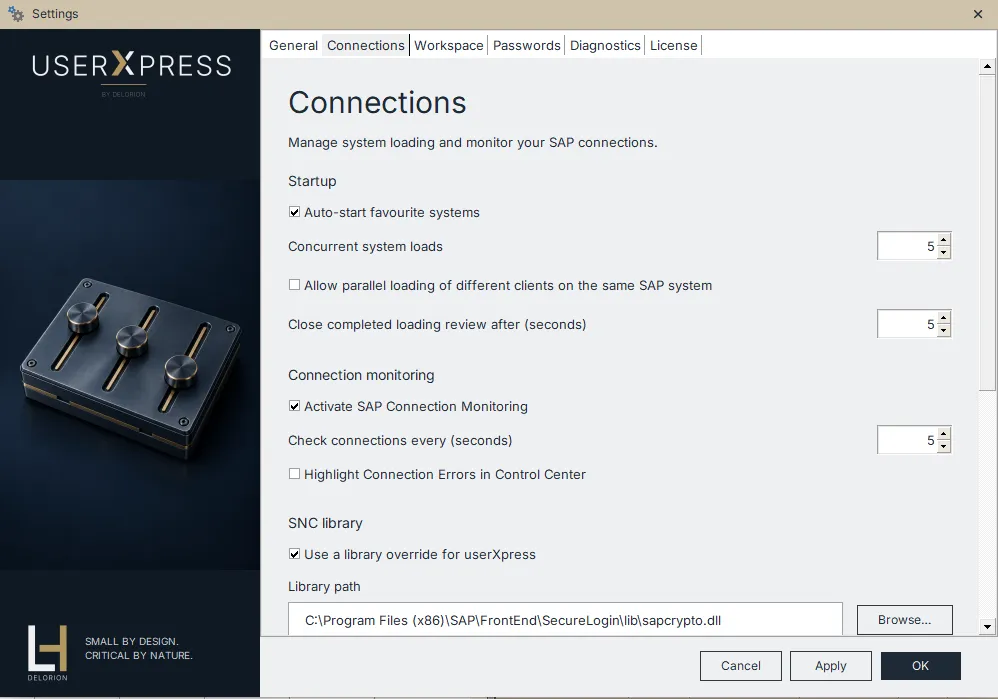
Startup
-
Auto-start favourite systems: Loads the saved AutoStart connections when userXpress starts. Clear it when you want to connect clients individually.
-
Concurrent system loads: Limits how many clients AutoStart loads at once. Lower it to reduce simultaneous loading against SAP. A value of 1 loads clients one at a time.
-
Allow parallel loading of different clients on the same SAP system: Allows clients on the same SAP system to load together, within the concurrent-load limit. With this option cleared, clients on the same system wait for one another while different systems can load together.
-
Close completed loading review after (seconds): Sets how long the completed Loading systems review remains open without keyboard or mouse interaction. Increase it to allow more reading time.
The three loading controls become available when Auto-start favourite systems is selected. Save the settings for the next AutoStart run.
SAP GUI
Maximum SAP GUI windows sets how many SU01 and PFCG windows can be open or opening from userXpress at once. The default is 5, shared across both tables and all connected clients.
- Open Settings → Connections → SAP GUI.
- Enter a whole number of at least 1 in Maximum SAP GUI windows.
- Choose Apply or OK.
The saved limit applies to the next launch without restarting userXpress. Lowering it keeps existing windows open. Close enough windows to make room before opening more.
For example, with a limit of five and two windows already open, you can open three more records. Selecting four opens none of that selection. Select three or fewer and try again.
A record already open or opening must be deselected before launching another selection that contains it.
SU01 windows opened through a SAP logon ticket connection count only while userXpress starts them. SAP GUI takes over those windows after launch.
Connection monitoring
Select Activate SAP Connection Monitoring to have userXpress check open SAP connections periodically. Set the interval in Check connections every (seconds).
Select Highlight Connection Errors in Control Center to highlight interrupted connections in the Control Panel. Save and restart userXpress after enabling or disabling monitoring or its highlighting. For the displayed states and reconnection steps, see Connection status icons.
SAP Logon configuration and SNC
userXpress detects the SAP Logon configuration file automatically. Use SAP Logon configuration → Configuration file (INI / XML) when you need a different connection list. Follow Use a different connection file.
Use SNC library to select the installed provider for SNC connections. The SNC configuration procedure explains library selection and the restart required after a change.
Passwords
Open Settings → Passwords to save a default initial or productive password and choose whether the password command opens a dialog.
- Under Initial password or Productive password, fill in Enter and Re-Enter with the same value. Show password reveals the entries.
- Keep Show Initial Password dialog window or Show Production Password dialog window selected to open the corresponding dialog with that value filled in.
- To apply the saved password immediately when choosing the command, clear its show-dialog option.
- Choose Apply or OK.
The two defaults are independent. If both entries for a default are blank, userXpress enables its dialog so you can enter a password for each operation. See Lock accounts and manage passwords for the account-selection and reset procedures.
Under Productive clients, Display confirmation when user belongs to productive client adds a confirmation to user-table commands such as Lock, Unlock, Delete and password changes. The warning checks the first client in the selection. To receive a separate confirmation for each productive client, select and process one client at a time.
Excel exports
Use these options in Settings to require a password when opening an exported Excel workbook. Export protection is off by default.
- Select Protect Excel exports.
- Enter the password in Default Excel password and confirm it. Password entries are masked.
- Select Let me choose on each export to choose protection or a different password for individual files. Leave it cleared to use the default automatically.
- Choose Apply or OK.
The settings work together as follows:
- Protect Excel exports cleared: Excel exports are saved without password protection, and Let me choose on each export is unavailable.
- Protect Excel exports selected and Let me choose on each export cleared: Excel exports use the saved default password automatically.
- Both options selected: the export window shows protection controls, initially using the saved default.
Choose protection for one export
With Let me choose on each export selected, make the choice in the export window before starting the export:
- Keep Password protect this file selected to use the default password.
- Choose Change… to enter a different password for this file.
- Clear Password protect this file to save this file without password protection.
- If protection is selected and no default is available, enter the password in the export window.
These choices apply to that file only. The saved default stays unchanged. If protection is selected without a usable password, the export window explains what is needed before export can start. Cancelling stops the export and leaves the destination unchanged.
Open a protected workbook
Give the recipient the password used for that file. Excel asks for it when opening the workbook. The recipient uses the export password, not your userXpress passphrase.
When opening a protected workbook in userXpress, the saved default can be used if it matches the file. Enter the file’s password when prompted, including when the file used a one-export override or a different default. If the password is rejected, enter the correct password before importing. Cancelling stops the import.
Changing the default affects future exports. Previously exported workbooks keep their original passwords. Resetting a forgotten userXpress passphrase clears the saved default Excel password, so retain the passwords needed to open those files.
For encryption and profile storage details, see Excel export protection.
Diagnostics
Use Settings → Diagnostics to choose activity recording and connection logging.
- Record user activity records account-operation results for Activity History.
- Activate ERPConnect Logging enables detailed SAP connection logs for investigating connection problems. When support asks for these logs, enable the option, save and restart userXpress before repeating the affected connection. Clear the option and restart when the capture is finished.
To measure loading time, use Information → Diagnostics on the main toolbar and follow Measure loading performance.
License
Open Settings → License to view the installed product, license type, issue date and registered organisation’s contact details. For obtaining and entering a license, see Installation and licensing.
Session password
Use Session Password on the main toolbar to change the passphrase used to open and unlock userXpress.
- Enter Current passphrase.
- Enter a passphrase of at least 12 characters in New passphrase and Confirm new passphrase.
- To add a reminder, enter it in Passphrase hint.
- Choose Change passphrase.
userXpress confirms the change. Saved logons and the default Excel password remain available. Use the new passphrase the next time you start or unlock the application.
Lock the workspace
Choose Lock Screen on the main toolbar when you want to lock userXpress while keeping your workspace open. To return, enter Session passphrase and choose Unlock session.
Activity and diagnostic information
Choose the main-toolbar command that matches the information you need:
- Activity History shows recorded account-operation results from this session. A number beside the command indicates unseen entries. Selecting the window marks those entries as viewed. An Updates failed notification opens the history when clicked. See Activity History for its columns and outcome meanings.
- Display Errors Log opens the application log. Choose Refresh Display to load the latest entries while investigating a reported error.
- Information shows the application version and runtime details. Copy details copies the displayed technical information. SAP Client Info shows information about the installed SAP client software.
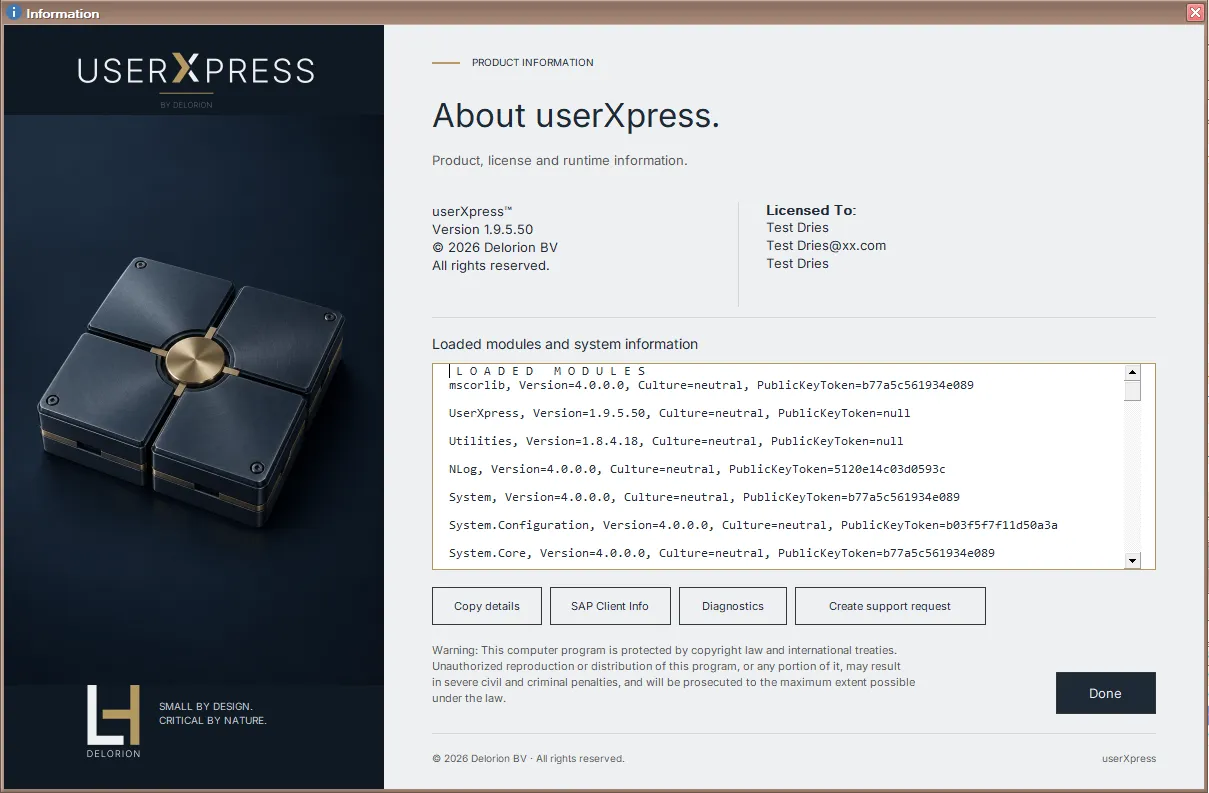
In Information, choose Create support request to describe a problem and select files to attach. Follow Create a support request for the sign-in, attachment and submission steps.