 Delorion
Copy roles between clients
Copy role definitions and their related roles to selected SAP clients, then read the import and profile-generation results.
Applies to userXpress 2.0.0.0
Download PDF
- This pageCopy roles between clients
- This sectionRoles
- Full manualuserXpress documentation
On this page
Use Roles → Copy Roles.. to transfer a role definition from one SAP client to others. For example, copy a purchasing role to another client where administrators need the same authorization settings.
A role definition includes its authorization settings and menu. This operation imports the definitions and generates their profiles. To give existing users another user’s roles, use Copy role assignments between users.
Prepare the source and destinations
Connect the source and destination clients in the Control Panel. With role management enabled, their roles load into the Global Role Table. The copy window uses that loaded list. To retrieve roles added since the connection loaded, reconnect the source client and reopen Copy Roles.
Your SAP logon needs access to read the source definitions and to import and generate roles in the destinations. See SAP access for the required authorizations.
The copy includes related roles:
- A composite role groups single roles. Copying it includes those component roles.
- A derived role brings its parent role. Derived roles share the parent’s menu and can have different authorization or organizational values.
- A composite’s derived components also bring their parent roles.
Importing these definitions can change roles already present in a destination, affecting users who have those roles. Select the source client whose definitions should be used for each role name.
Select and copy
- In the Global User Table, choose Roles → Copy Roles...
- Under Select Roles, narrow the list using the filter row beneath the column headings. System Description, Logical Name and Client identify each role’s source.
- Select the source-role checkboxes. Each selected role will be copied to each selected destination.
- Wait for the automatic destination check to finish. Under Select Systems, select the destination-client checkboxes. A highlighted system name and a Comment identify a client where role-copy support is missing or could not be checked.
- Choose Copy Roles to start.
- When processing finishes, open Results to read the outcome for each role and destination.
A destination that is also the source client for a selected role is skipped for that role. Other source-role and destination combinations continue.
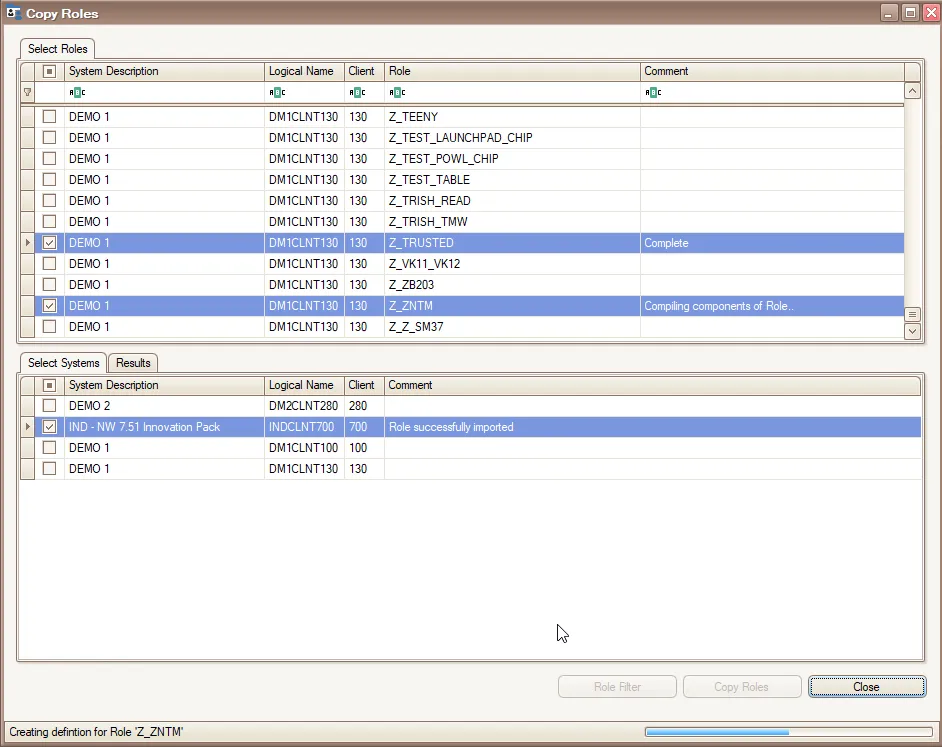
Choose source roles in the upper list and destination clients in the lower list.
Filter by a list of role names
Use Role Filter when you already have a list of roles to copy.
- Choose Role Filter.
- Enter or paste the full role names, one per line.
- Choose OK. The list shows matching role names across the loaded clients.
- Apply a source-system or client filter if needed, then select the role checkboxes.
Role Filter replaces the previous role-list filter. It matches complete names. Use the column filter row for a partial-name search.
Read the results
userXpress prepares each source definition, imports it into the destinations and generates the associated single-role profiles. The source-role Comment describes preparation. The destination Comment shows that client’s latest copy outcome.
Results contains the detailed sequence, with System, Logical Name, Client, Role and Message. For example, DM1CLNT100 identifies system DM1, client 100.
- Role definition compiled successfully means the source definition is ready for import.
- Import of Role completed means the destination accepted the import. Profile generation follows this step.
- Role successfully imported is recorded after the import and generation calls finish without a reported error.
- The target client is the same as the source client. Skipping. identifies a combination that was skipped.
- Role copy finished marks the end of processing. Read the preceding role-and-client entries for any failures.
Results accumulate while the window remains open. After another copy, its messages appear below the earlier results. The destination’s single Comment can therefore be read alongside Results to see outcomes for all copied roles.
Check partial results
Destination cannot accept a copy
The automatic check highlights destinations where role-copy support is unavailable. Their Comment identifies a missing /SDF/PRGN_EXECUTE_UPLOAD function or a failed support check. Only clients with a successful check are included when you choose Copy Roles.
Include that comment when contacting support. After the cause is resolved, close and reopen Copy Roles to repeat the destination check.
Source preparation fails
Source role preparation failed means userXpress could not prepare that definition for import. Processing stops at that source role. Earlier copies remain applied.
Use the source system, client and role named in Results to identify the failed read. After resolving it, select the failed and remaining source roles for the next copy.
Import or generation fails
An import error stops that role’s work in the affected destination. A generation error leaves the imported definition in place. Other destinations and subsequent source roles can still complete.
For a generation failure, open the affected role in PFCG in the destination client and use the generation messages to resolve its authorization data. Generate the single-role profiles describes the PFCG steps.
A role with no authorization data is identified in Results before generation is attempted. Include the role name, destination and relevant messages when contacting support about an unresolved failure.
To repeat a copy, select the affected source roles and destinations, then choose Copy Roles again.
Stop a copy
Choose Close during a copy and answer Yes to Cancel Role Copy. Active client work finishes, and work that has not started is skipped. Imported definitions remain in the destination clients.
The status changes to Role copy was cancelled when processing stops. Read Results for completed and cancelled copies, then choose Close again to leave the window.