 Delorion
Find and select users
Filter the Global User Table, select accounts, save and reuse queries, and export a user list.
Applies to userXpress 2.0.0.0
Download PDF
- This pageFind and select users
- This sectionGlobal User Table
- Full manualuserXpress documentation
On this page
Start with the users loaded from your connected SAP clients. Before changing an account, check its System Description and Client values: the same user ID can exist in several clients.
See User table columns: account details for column meanings and how to show optional fields.
Filter and select
- In the Global User Table, enter a complete or partial value in the filter row beneath the column heading.
- Enter values beneath other headings to narrow the list further.
- Select the accounts to act on using their row checkboxes. You can also hold Shift to select a range of rows.
- Check the selected rows and their System Description and Client values before opening an action.
Filtering narrows the displayed list. It does not select all matching accounts. Open an action from the table toolbar or by right-clicking a selected row.
If the table selects individual cells instead of account rows, right-click in the table and turn off Cell Selection to return to row checkboxes.
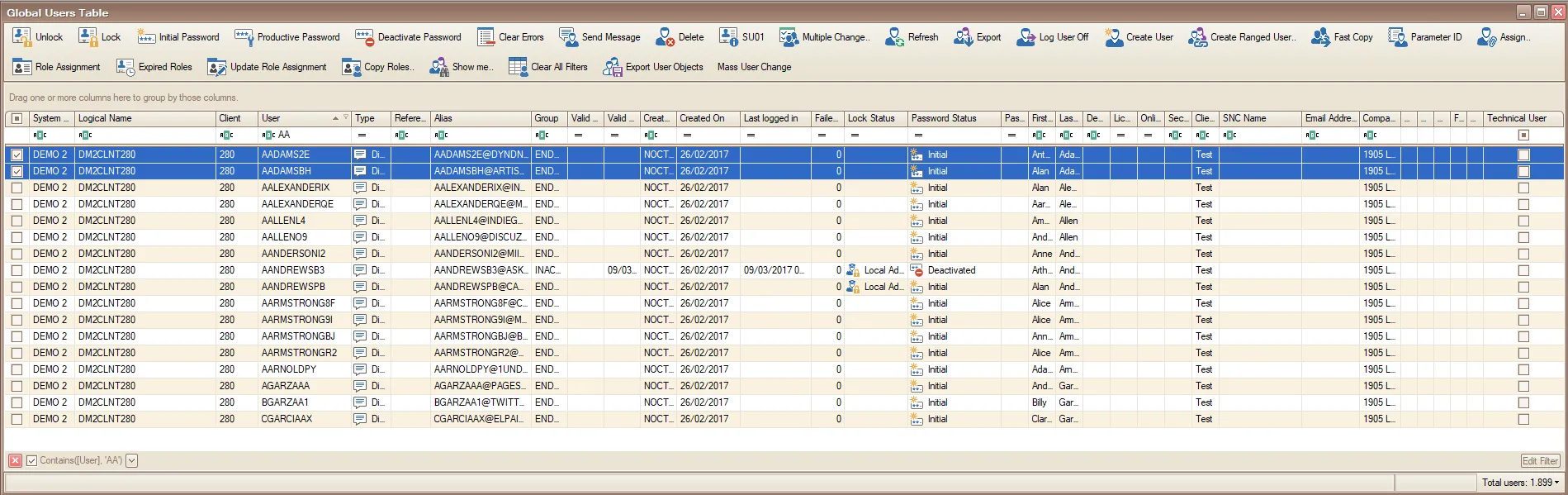
The checked rows identify the accounts selected for an action.
Use a built-in query
- Open Show Me and choose the condition you need, such as users who have not logged on within a chosen period.
- Review the accounts in the filtered table.
- Select the accounts before opening an administration action.
See Show Me: predefined user filters for each choice and its exact criterion.
A built-in query replaces the current table filter. To display all loaded users again, choose Show Me → Everyone. Clearing a filter does not undo a completed SAP operation.
Create an advanced query
Use Edit Filter when a column filter is not enough. The My Queries guide explains how to add conditions, combine them with AND or OR, group alternatives and save the result. Its examples start with one surname and build up to a client restriction with two alternative surnames.
Save a query
Save a query when you need to use the same filters again. It stores the filter conditions. The matching accounts depend on the data loaded when you use it.
- Apply the filters you want to keep.
- Choose My Queries → Save the current query...
- Enter a name in Query Description and choose OK.
- If that name already exists, confirm replacement only if you want to replace its saved filter conditions. Otherwise, decline replacement and enter a different name.
The saved query appears under My Queries. Choose its name to apply it, then select the accounts you want to act on.
To rename or remove a query:
- Open My Queries → Maintain Queries.
- Edit its description to rename it, or select its row and choose Delete to remove it.
- Choose Save, then Close to return to the table with the updated query menu.
Removing a saved query removes the filter definition, not the SAP accounts.
Export the table
Export uses the rows in the filtered table, including rows whose checkboxes are clear. Filter the list to the accounts you want in the report before starting the export.
- Choose Export in the Global User Table.
- In the export dialog, select the required Export Format.
- Use Save As to choose the destination and filename.
- Choose OK and wait for the export completion message.
- Open the saved file. Check that it contains the intended users, systems and clients, and review the included columns before sharing it.
Exports can contain account and personal information. Store and share the file according to your organization’s access rules. If the export reports an error, read the message and check the destination and filename before trying again.
Export user objects for creation
Choose Export User Objects for selected users to create a workbook for Mass User Create. This is a separate action from exporting the visible table.
In userXpress 2.0.0.0, the workbook’s target cells start blank and offer System, SID and Client drop-down lists. Fill each intended target once for the batch: every listed destination applies to every user in that batch, regardless of the user’s source system.
Open the user in SAP
Use SU01 to open selected accounts in SAP user maintenance. SAP GUI must be installed, and the connection must use a SAP Dialog user authorized for SU01 in the selected client.
- Select the account rows using their checkboxes.
- Choose Users → SU01.
- For several accounts, the confirmation lists each user ID, system and client. Choose Open N windows, where N is the number of selected accounts, to continue. Choose Cancel to return to the table.
Each selected account opens in a separate SAP GUI window. You can continue working in userXpress while those windows are open.
To open one account directly, double-click its user ID. This opens the clicked account even when other rows are selected.
With a SAP logon ticket connection, SU01 opens at its initial screen. Enter the selected user ID there to continue.
The default SAP GUI window limit is five, shared with PFCG. If the selection exceeds the available capacity, userXpress reports how many records you can open and leaves the selection unopened. Select fewer accounts or close existing windows, then choose SU01 again.
For opening errors, use SU01 or PFCG does not open.