 Delorion
Create a support request
Describe a problem, choose diagnostic files and create a ticket or add information to an existing support request.
Applies to userXpress 2.0.0.0
Download PDF
- This pageCreate a support request
- This sectionHelp
- Full manualuserXpress documentation
On this page
Use Information → Create support request to send a problem description and selected diagnostic files to Delorion Support. Create a new ticket for a new problem, or add information to an existing ticket when continuing an investigation.
You need internet access and a Delorion Support account associated with your organisation. The wizard prepares the request and uploads the files you approve. You finish by choosing Submit in the support portal.
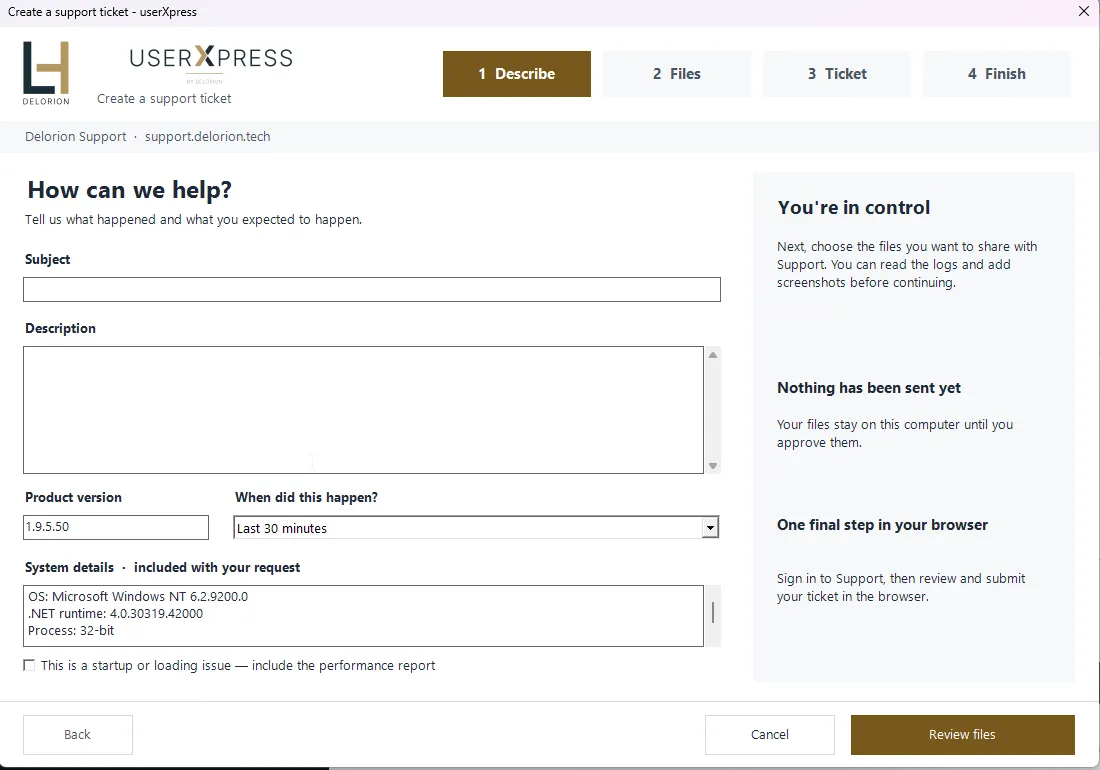
Describe the problem
- Open Information → Create support request on the main toolbar.
- Enter a Subject identifying the problem. In Description, explain the action you took, the expected result and what happened. Include the exact message and the affected system/client where relevant.
- Choose When did this happen?: Last 30 minutes, Last 2 hours, Today or Last 7 days. This selects archived logs by their modification time. The current logs are included when available, and the selected files retain their full contents.
- Product version is filled in automatically. Edit System details if you need to add context about the workstation or connection.
- For a performance problem, select This is a startup or loading issue — include the performance report to attach files from the latest available diagnostic session. Capture a session first when you need measurements of the problem.
- Choose Review files.
For example, use a subject such as “Selected-user refresh stops for client 100”. Describe how many accounts were selected, the client, the message and whether other clients finished.
The subject accepts 3–240 characters, the description 10–50,000 characters and system details up to 500 characters. Describe the problem without including passwords or license keys.
Review and approve the files
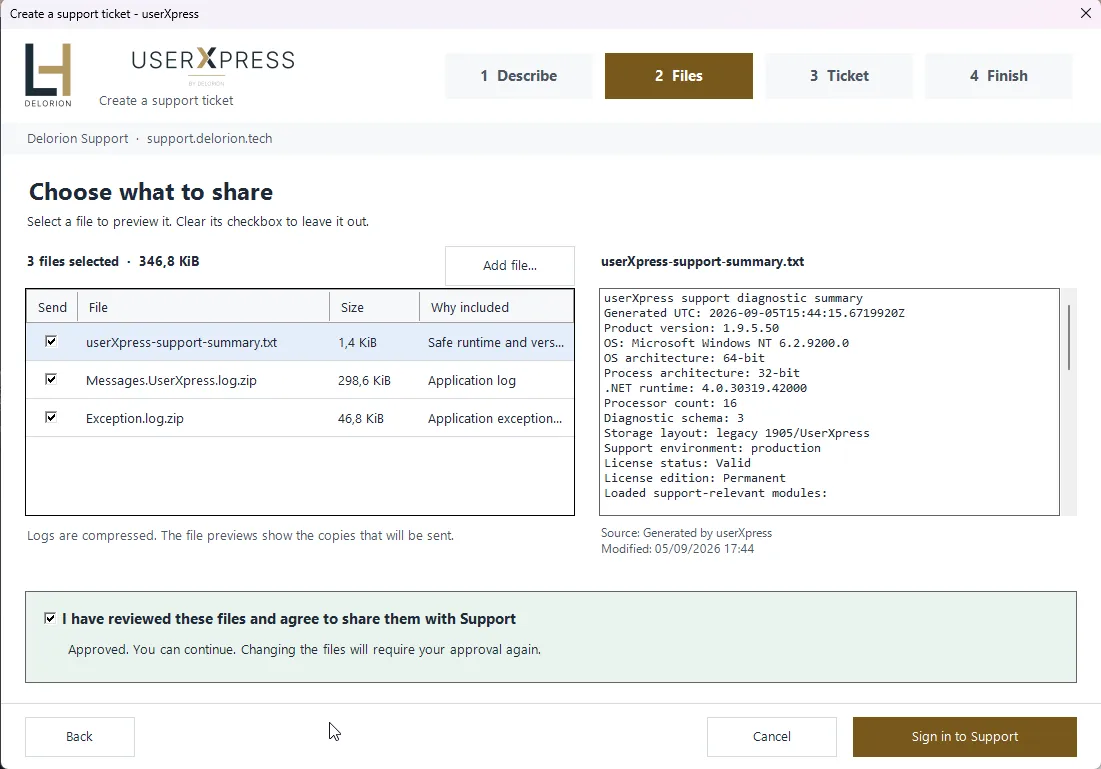
The wizard suggests application logs, an exception log and a generated version/environment summary. It also includes the performance files you requested.
- Select a row to read its preview. Why included explains the suggestion. The details below the preview identify the source and modification time.
- Clear Send for any file you want to exclude.
- To add a screenshot, PDF, text file or diagnostic archive, choose Add file…. Added files are selected for sending automatically.
- Select I have reviewed these files and agree to share them with Support.
- Choose Sign in to Support. If you have already signed in during this wizard, choose Choose ticket.
The file list shows the copies prepared for upload. Log files are compressed. A truncated preview displays only part of the file, while uploading sends the complete prepared file. Open the original separately when you need to review the rest or inspect a binary attachment such as a screenshot or PDF.
Logs and screenshots can contain account names, system names and paths. Use Send to exclude files you do not want to share. Review added files for passwords or other confidential content before selecting them.
At least one file is required. The generated summary is available when there are no logs to attach. A request can include up to 20 files, with a maximum of 25 MiB per file and 100 MiB in total. The displayed file sizes are the sizes prepared for upload.
Changing the file selection clears approval. Select the approval checkbox again after reviewing the new selection. Returning to Describe and choosing Review files rebuilds the list, so add any manually selected files again.
Sign in and choose a ticket
The browser opens for sign-in. Use your Delorion Support account, then return to the wizard after the browser confirms sign-in.
To register a new account, use the email address known to Delorion and complete email verification in the browser. Return to the wizard and choose Resume sign-in or Sign in to Support as displayed.
Choose the destination for your request:
- Create a new ticket uses the subject and description you entered.
- Add to an existing ticket lists recent userXpress tickets for your organisation. Select the ticket by its reference and subject. Status and Updated help identify it. Your description and files become a public update on that ticket. Choose Refresh tickets to reload the list.
Choose Continue to create ticket or Continue to update ticket. For an existing ticket, choose OK in the confirmation naming that ticket. The wizard then sends the approved files.
If the ticket you need is outside the recent list, open it in the support portal to continue the existing conversation there.
Finish in the browser
The final step shows each attachment as Waiting, Sending… and then Ready. After the files are uploaded, the portal opens to the prepared request.
- Review the ticket destination, description and attachments in the portal.
- Choose Submit to create the ticket or post the update.
- Use the ticket reference shown by the portal for subsequent correspondence.
While the wizard remains open, Review & create ticket or Review & update ticket reopens the prepared request. Choose Close when you have finished.
If you cannot continue
Create support request is disabled
Point to the button to read its tooltip. Open the Delorion support portal directly and include that message with the problem description.
Sign-in was cancelled or did not return
Keep the wizard open and finish any registration or email-verification step in the browser. Use Resume sign-in or Sign in to Support to try again. Cancel sign-in stops the browser sign-in attempt while keeping the selected files available in the wizard.
If sign-in still fails, include the displayed error in a request through the support portal.
The file step will not advance
Select at least one file and approve the selection. If a size or count limit is reported, clear Send for files you want to exclude, then approve the revised selection.
No performance report is available
Measure a session, then start the support request again to include its results. You can also leave the performance option clear and send the available logs with a description of the delay.
Preparation failed before file upload
The wizard returns to the ticket step and displays the error. Correct the reported problem, then use Continue to create ticket or Continue to update ticket again.
An upload failed or was cancelled
The wizard reports that some files may have arrived and asks you to start a new request. Close the wizard and reopen Information → Create support request. Submission still takes place through Submit in the portal. If you already submitted a request, add the information to that ticket instead of creating another one.