 Delorion
Copy users between clients
Create selected user IDs in another SAP client, with their own roles or those of a target-client account.
Applies to userXpress 2.0.0.0
Download PDF
- This pageCopy users between clients
- This sectionUsers
- Full manualuserXpress documentation
On this page
Use Copy To.. when existing users need accounts in another SAP client with the same user IDs. For example, copy a group of users into a training client without entering their names, contact details and defaults again.
Each selected account is copied to the one target client you choose. Existing target accounts are left unchanged and reported in Results. To create a different user ID from an existing account, use Create From or Fast Copy.
Copy to another system or client
Connect the source and target clients in the Control Panel. The Copy To.. menu lists connected systems and their clients.
- In the Global User Table, select the source accounts using their row checkboxes. Select one source account per user ID.
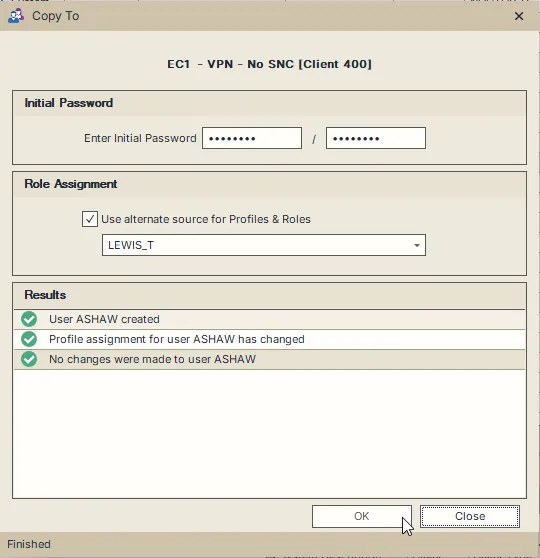
- Right-click the selection and choose Copy To.. → target system → target client. The Copy To dialog shows the destination at the top.
- Choose where the new accounts’ roles and profiles come from:
- Leave Use alternate source for Profiles & Roles clear to copy each source account’s assignments.
- Select it to use one existing account in the target client for all copied accounts. Choose that account from the list beside the checkbox.
- Under Initial Password, enter the same new password in both fields. This initial password applies to every account created by this copy.
- Choose OK. Messages appear under Results as the accounts are processed.
- When the status reads Finished, use the messages to identify any creation or assignment errors, then choose Close.
The dialog initially selects the first account in the alternate-source list. Choose the intended account before using that option.
If CUA Restriction appears, the selected client requires account creation through Central User Administration. Create and distribute the accounts from the central system.
Choose the authorization source
The default copies roles and profiles from each selected source account. Use it when those assignments are also appropriate for the destination. The named roles and profiles must exist in the target client.
Select Use alternate source for Profiles & Roles when the destination requires different access. For example, select an existing training account to give all copied users its training roles. The new accounts still receive their own source users’ names and other account details.
Role assignments retain the validity dates from the chosen authorization source. An expired assignment therefore remains expired after copying.
What is copied
userXpress reads the source accounts from SAP when you start the copy. The account details include:
- Logon data: user type, validity dates, authorization-check group, account ID and time zone.
- Personal and contact details: names, address, work-center information, email and communication details.
- Defaults: logon language, date/time and number formats, print defaults, cost center and start settings.
- Other account data: alias, reference user, license classification, SNC data, general group memberships and parameter values.
- Roles and profiles: assignments from the source chosen in the dialog.
Only groups and parameter IDs defined in the target client are carried over. The authorization-check group is also copied only when it exists there. Differences between SAP releases can limit which fields can be transferred.
Understand the results
Results displays messages with success, warning or error icons. An account can produce several messages because creating it and assigning its profiles and roles are separate operations. Finished means that processing has ended, including accounts that returned errors.
- User already exists: the target account was skipped. Use the account or role maintenance commands to change that existing account.
- Alternate authorization user does not exist: choose an existing target-client account as the authorization source and start a new copy.
- Account created, but an assignment failed: the new account remains in the target client. Correct its assignments through Manage roles or SAP user maintenance.
Successfully created accounts are added to the Global User Table. To retry a failed creation, close the dialog and open Copy To.. again for those source accounts.
If a User Copy error interrupts processing, load the target client’s users to identify which accounts were created before the interruption. Retry only the missing accounts. Include the error text when contacting support.
Create a new user from an existing account
Use Create From to create one new account in the source’s client. Use Fast Copy to create the same new user ID from source accounts in several clients. Both procedures let you choose which properties to copy.
Use Create users to enter the details directly, or account-list creation for a list of new IDs and source accounts.
Copy roles separately
Use the right-click Copy Roles from user and Paste Roles commands when existing accounts need another user’s assignments. See Copy role assignments for the procedure.