 Delorion
Mass User Create
Create accounts from a workbook, choose shared or individual assignments, and save each account's results and initial password.
Applies to userXpress 2.0.0.0
Download PDF
- This pageMass User Create
- This sectionBulk creation
- Full manualuserXpress documentation
On this page
Use Mass User Create to create a group of accounts whose details, roles and parameters are defined in a workbook. For example, a new team can share a set of roles while each person has their own name, email address and user ID.
Open Mass User Create from the main userXpress toolbar. The Spreadsheet tab contains the editable workbook. Messages contains workbook-check results and account-creation messages.
Obtain the example workbook
- Choose Help → Save Example Mass User Create Spreadsheet and save the file.
- Choose File → Open to open it in Mass User Create.
- Use Full Description - Vertical and Full Description - Horizontal to see the layouts, then prepare your accounts on Your sheet.
The first row provides choices for field headings. Keep the headings for the information you want to supply, using Workbook fields and formats as a reference.
Format and user-type cells have readable drop-down choices. The workbook also offers titles, time zones, security policies, logon languages and user groups from connected clients. You can type a value directly. A value offered by one client can still be unavailable in another target client.
Help → View Help opens this guide. Help → Save Example MS Word Mail Merge saves a Word template for notifying users from the results worksheet.
Choose a layout
- Vertical: Use this when everyone in a batch receives the same roles, profiles and parameters. List those assignments down their columns. Names, contact details and other personal values remain on each user’s row.
- Horizontal: Use this when users need different assignments. Put each user’s roles, profiles and parameter pairs across that user’s row.
Set cell A1 to Vertical or Horizontal. Separate batches with two completely blank rows. For example, give Accounts Payable and Accounts Receivable separate Vertical batches when each team needs a different set of roles.
See Repeatable assignments for role dates, parameter pairs and the Horizontal profile restriction.
Set targets for the batch
In both layouts, System, SID and Client define the targets for every user in the same batch. They do not belong to the user on the same row. Enter each intended target once, using matching system, SID and client values.
For example, a batch with two users and targets ABC / 001 and ABC / 100 creates both users in both clients: four accounts in total. Repeating a target beside each user can repeat processing. Use separate batches, divided by two blank rows, when different groups of users need different targets.
Connect the target clients through the Control Panel before running the workbook check.
Start from exported user objects
Select users in the Global User Table and choose Export User Objects to prepare a Horizontal workbook containing their details, roles and parameters. Use this as a starting point when new accounts need similar settings to existing accounts.
Users may come from several source systems. The exported file is one batch until you divide it into separate batches.
The exported System, SID and Client cells are blank so that you can choose the batch’s destinations. Their drop-down lists contain choices from the clients connected when the file was exported. The lists are stored in the workbook and work in Excel and the Mass User Create spreadsheet editor.
- Set
User_IDand the personal details for the accounts you want to create. - Choose matching target values and enter each destination once. A choice in one list does not automatically select matching values in the other two lists.
- Preserve three-digit clients such as
001. - Run Check → Format & Systems after editing.
Existing accounts in a target are reported during checking. To change existing accounts from a workbook, use Mass Changes.
The export shows waiting, active and completed clients. Cancellation waits for active reads to finish. A failed or cancelled export does not provide a completed workbook. Read the reported error before trying again.
Open and check
- Choose File → Open and select the workbook.
- Select the worksheet containing the accounts to create.
- Save any edits with File → Save, or use Save As.. to save a separate workbook.
- Run Check → Format & Systems. userXpress checks the worksheet first, then checks its target clients.
- For a reported problem, use the highlighted cell or Messages entry to locate the value and correct it. Save your changes and run Check → Format & Systems again.
When the checks succeed, Accounts → Start and Create Users become available.
The check uses the active worksheet. Switching worksheets clears its check results. Run the check again when returning to that worksheet.
What the check covers
The worksheet check covers the layout marker, required headings, duplicate headings, target identifiers, account dates and coded preferences. The field reference explains the accepted values and blank-cell defaults.
The SAP check covers:
- Connections to the listed systems and clients.
- Existing user IDs and aliases in each target.
- The requested roles, profiles, parameters, output devices, reference users, user groups and security policies.
If Client Connections lists disconnected targets, connect those clients in the Control Panel and run Check → Format & Systems again. Other problems appear against their target client in Messages.
Find a reported cell
Point to a column heading for entry guidance, or to a highlighted cell for its message.
- Choose Messages → Show to open the message list.
- Double-click an entry with a cell reference. userXpress switches to the Spreadsheet tab and selects that cell.
- Correct the value and run Check → Format & Systems again.
Next Cell and Previous step through cells reported by the worksheet check. Messages → Export saves the displayed message list to an Excel workbook.
Create accounts
Choose Accounts → Start or the Create Users toolbar button. userXpress processes every account in the active worksheet’s batches against that batch’s listed targets.
The status bar shows progress as clients and users are processed. Several clients can be active at once. Completed account information is added to the Global User Table, and the results worksheet opens when processing finishes.
Pause or stop
- Choose Accounts → Pause to pause after the active account operations finish. Choose Accounts → Start to continue.
- While processing is active, choose Accounts → Stop, then Yes, to stop the run. Active account operations finish before the results are displayed. Accounts already created remain in SAP.
A stopped or incomplete run retains its progress for Accounts → Start to resume. See Recover a mass-creation run for the resume choices and recorded failures.
Save and review results
Use the Save toolbar button to save the workbook with its new results worksheet. The worksheet name normally ends in _Passwords, with a suffix when that name already exists.
Each row identifies an account and its target through System, SID, Client Nr and Username. It also contains the recorded Password, name, email address and account-validity dates. Comment identifies the batch.
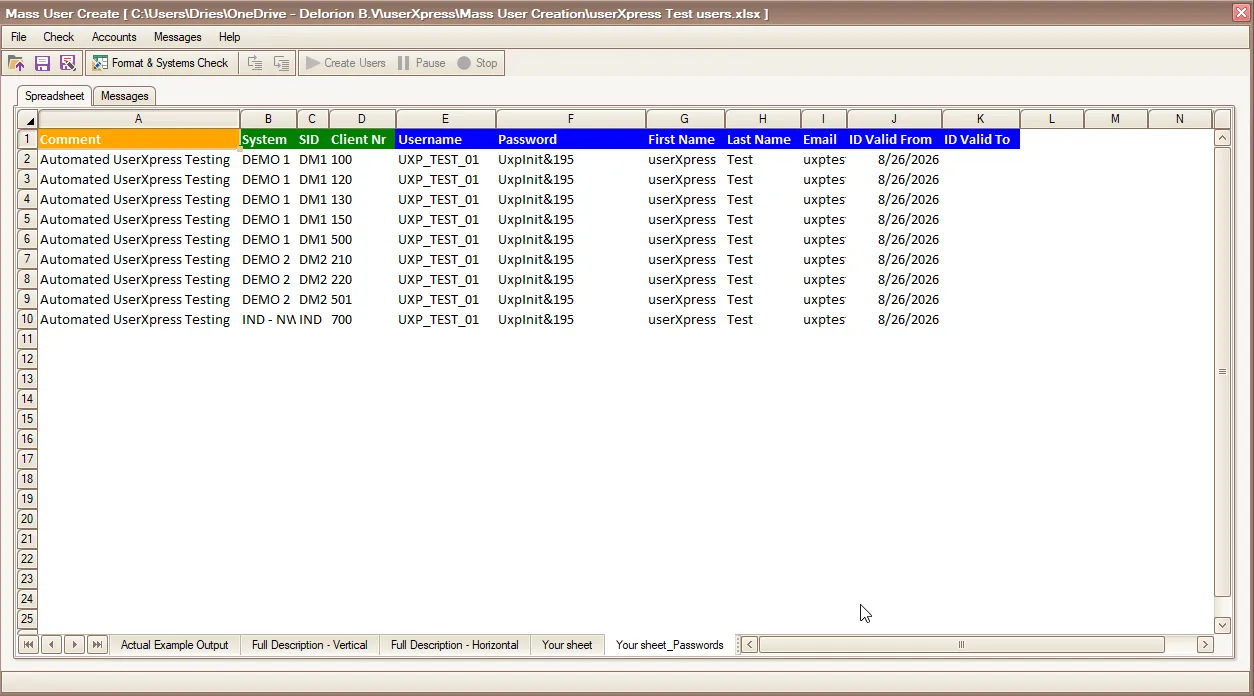
The results worksheet records account details and initial passwords by target client.
Open Messages for the account-creation and role-assignment outcomes. Batch, System, SID, Client and User identify the target of each Message.
- The user … was successfully created reports account creation. Role-assignment messages follow separately.
- The user … was not created is followed by SAP’s explanation. Its password cell is empty.
- A role-assignment error can occur after an account was created. Resolve that assignment for the existing account using Update role assignments.
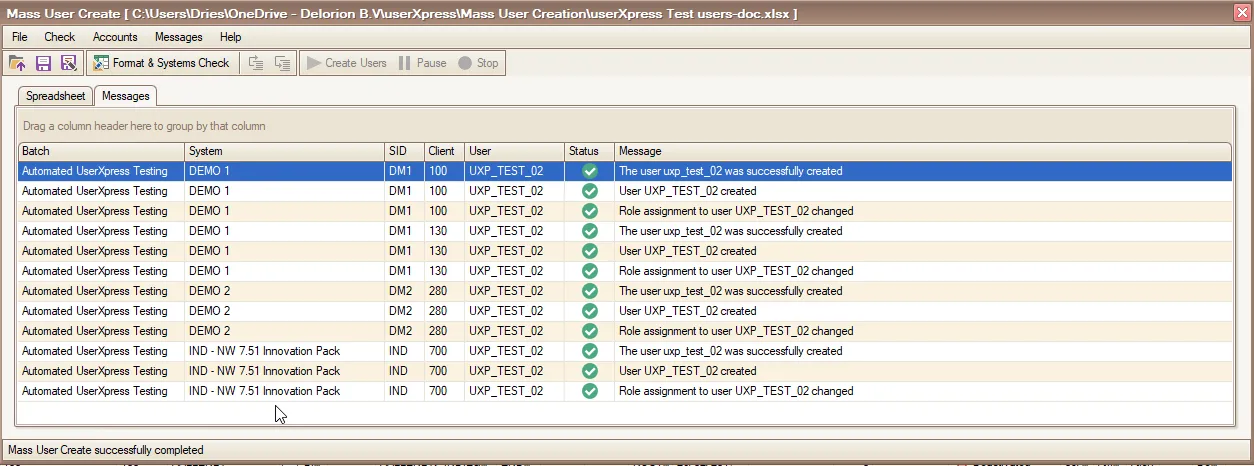
The Messages tab lists account-creation and role-assignment outcomes for each client.
After a stopped run, the Save toolbar button remains available. Use the recovery guide for a highlighted password beginning with Error: or a message that the Global User Table could not be updated.
For account notifications, see Work with a mail-merge template.
Choose File → Close to close the workbook or File → Exit to leave Mass User Create. If an unsaved-workbook warning appears, choose No to return and save it. Choosing Yes closes it without saving.