 Delorion
Assign roles from the Global Role Table
Assign selected roles to selected users in matching SAP clients, with a shared validity period and a choice to retain or replace existing roles.
Applies to userXpress 2.0.0.0
Download PDF
- This pageAssign roles from the Global Role Table
- This sectionRoles
- Full manualuserXpress documentation
On this page
Use Assign in the Global Role Table when you have found the roles that users need. For example, select a reporting role in several clients and assign it to the team members in those clients.
Each user receives the selected roles from the same system connection and client. The role and user selections can span several clients in one operation.
Select users and roles
- In the Global User Table, filter the accounts you need, then select their row checkboxes.
- In the Global Role Table, filter the roles, including their systems and clients. Click the first role row, then hold Ctrl while clicking additional rows to select them.
- Choose Assign in the Global Role Table. You can also drag the selected roles onto the Global User Table to open the same dialog.
- In Assign Roles, User ID’s for Role Assignment shows the destination accounts. Roles to be assigned shows the selected role rows and their clients.
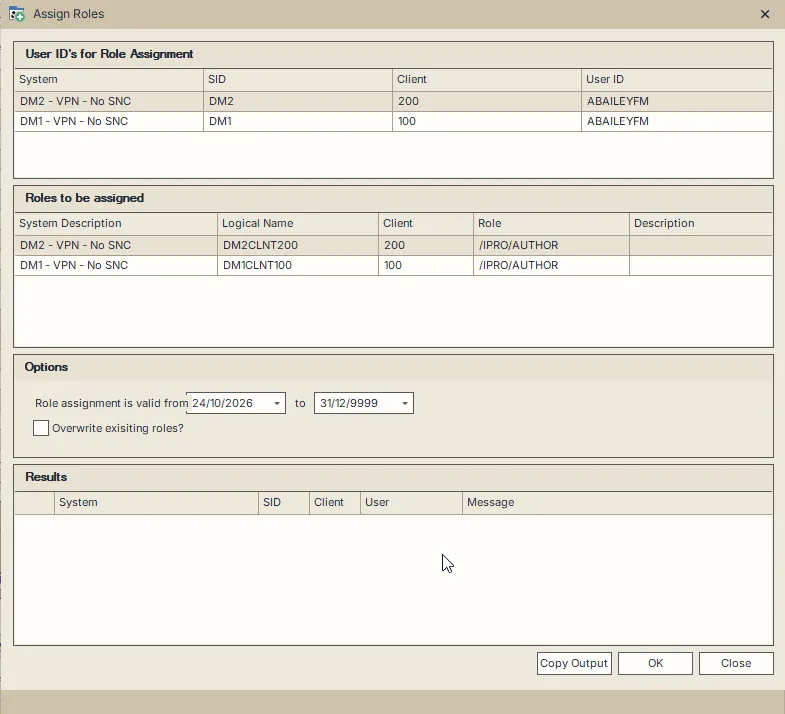
The same role is selected from both clients to match the two target accounts.
These lists come from the two tables’ selections. To change the accounts or roles, choose Close, change the table selections and open Assign again.
For example, suppose you select users in clients 100 and 200, but select Z_DEMO_REPORT only from client 100. The client-100 users receive that role. To assign it to the client-200 users too, select the role’s client-200 row before opening Assign.
Set the validity period
Under Options, set the two dates beside Role assignment is valid from and to. The initial period is today through 31 December 9999.
The dates apply to every new assignment in this operation. For temporary access, enter its end date. For a scheduled start, enter its start date.
Use Update role assignments when different roles need different new periods. To edit a period already assigned to a user, use the Mass Changes role worksheet.
Retain or replace existing roles
Overwrite exisiting roles? starts clear.
- Leave it clear to retain the user’s existing direct role assignments and their dates, while adding the selected roles with the new period.
- Select it when the selected roles should replace the user’s existing role list. Existing direct roles outside the selected list are removed. The selected roles receive the period entered in Options.
Your license determines whether the overwrite option is available. The operation applies the same choice to all listed users who have matching selected roles.
Apply the assignments
- Set the dates and overwrite choice for the operation.
- Choose OK. The status bar identifies the account and client being processed.
- When OK becomes available again, read Results for the completed operation.
- Choose Copy Output to copy the result list, or Close to return to the tables.
Results identifies each account with System, SID, Client and User. The Message column includes SAP responses prefixed with the operation:
- Remove roles: the response from replacing the previous assignment list.
- Assign roles: the response from applying the prepared list, including retained assignments when overwrite is clear.
- No Role was selected for this user. No action taken. means none of the selected role rows matched that user’s system connection and client.
Results accumulate while the dialog remains open. A later operation adds its messages below the previous results.
Resolve incomplete assignments
Assignment replacement clears the previous list before applying the prepared list. If removal succeeds but assignment fails, the account can be left with missing roles. Open Role Assignment for the affected account, then use Update role assignments to restore its intended roles.
An SAP error during removal is followed by an assignment attempt. Results includes both responses and a message explaining that sequence. Use the account’s resulting assignment list to determine what remains to be restored.
Other accounts can complete when one account fails. To retry affected accounts, close the dialog, select those accounts and the matching role rows, and choose Assign again. Include the copied result messages when contacting support about a persistent failure.
Stop processing
Choose Close while the operation is running. Active SAP work finishes, and accounts that have not started are skipped. The dialog stays open for Results.
Cancelled before role assignment started. identifies an unstarted account. Completed changes remain applied. Choose Close again after processing stops to leave the dialog.