 Delorion
Fast Copy
Create a new user ID from source accounts in one or more clients, with selected properties and new personal details.
Applies to userXpress 2.0.0.0
Download PDF
- This pageFast Copy
- This sectionUsers
- Full manualuserXpress documentation
Use Fast Copy when a new person needs accounts based on existing users in several SAP clients. Select the source account in each client, then enter the new person’s details once.
Each source row creates the new user ID in that source’s client. For example, select a training template in clients 100 and 200 and enter JSMITH under Copy To. userXpress creates JSMITH in both clients, using each client’s own template.
Create the new account
- In the Global User Table, select one source account in each intended client.
- Choose Users → Change → Fast Copy. Source User List shows the accounts and clients you selected.
- Under New User Detail, enter the new ID in Copy To. Enter the first and last name under Name.
- Enter the initial password twice under Password.
- Choose the properties to copy, then enter the new Email Address and SNC Name where required.
- Choose OK.
The new user ID can contain up to 12 characters. If the last name is empty, userXpress uses the new ID.
The operation uses the same new ID, name and password in every selected client. Choose one source per client to make the source of its settings and assignments unambiguous.
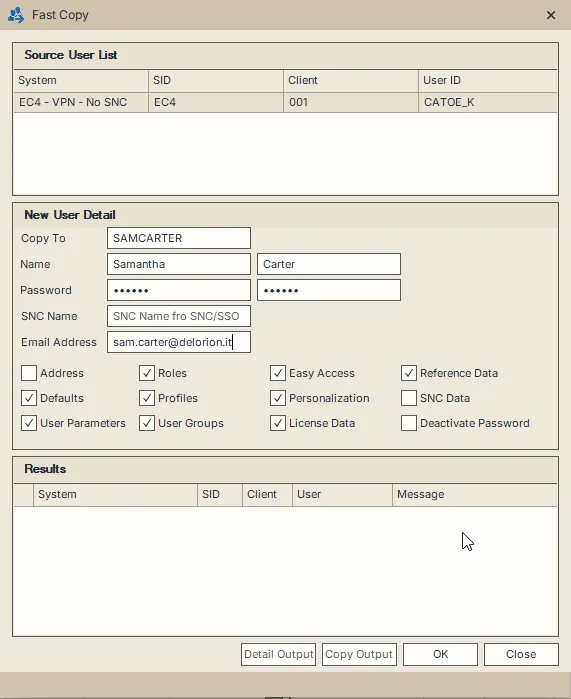
This example uses one source account. Address is cleared so the new person’s email address can be entered.
Choose the copied properties
The source’s logon settings and company are carried over, including user type, account validity, logon-data user group, accounting number and time zone.
Address and SNC Data start cleared. The other property checkboxes start selected.
- Address copies address and communication details. When selected, Email Address becomes unavailable because the source’s email details are copied. Leave Address cleared to enter the new person’s email address.
- Defaults copies SAP user defaults, including formatting and spool preferences.
- User Parameters copies parameter IDs and their values.
- Reference Data copies the reference-user assignment.
- Roles copies role assignments. Profiles independently copies authorization-profile assignments.
- User Groups copies additional group memberships.
- License Data copies the SAP license classification.
- SNC Data copies the source’s SNC settings and makes SNC Name unavailable. Leave it cleared to enter the new person’s SNC identity.
The Name values you enter take precedence over the source’s name. Personalization and Easy Access data must be maintained separately for the new account. Their checkboxes do not affect the copy in this version.
Create an account with password logon disabled
Use Deactivate Password for an account that will use SNC single sign-on.
Enter the password fields before selecting Deactivate Password. The fields then become unavailable. userXpress creates the account with password logon deactivated and applies the SNC choice described above.
Read the results
Results lists the outcome by system, client and user. Choose Detail Output for the detailed SAP messages, or Copy Output to copy the result list to the clipboard.
- An existing target ID is skipped. To change that account, use the account-change procedures.
- A successful creation remains in place when another client fails.
- A role or profile error can occur after the account has been created. Complete the missing assignment for that account after resolving the reported error.
The Global User Table refreshes the newly created accounts. If the status bar reports that some new users could not be refreshed, their creation results still apply. In Control Panel → Connected Systems, select the affected client and choose Remove, then connect it again to reload its accounts.
To create another new user from the same sources, enter the next Copy To ID and name, then choose OK. The dialog retains the password and property choices for reuse.
Stop a running copy
Choose Close while copying is in progress. userXpress stops starting new copies and lets active SAP calls finish. Completed copies remain available and are included in the table refresh.
The dialog stays open with the results. Choose Close again to leave it.