 Delorion
Find and remove expired role assignments
Find assignments by their end dates across SAP clients and remove roles that users no longer need.
Applies to userXpress 2.0.0.0
Download PDF
- This pageFind and remove expired role assignments
- This sectionRoles
- Full manualuserXpress documentation
On this page
Use Roles → Expired Roles to find role assignments whose validity has ended or will end by a chosen date. Use the results to plan access renewals or remove assignments left after temporary access has ended.
The Expiring Roles window searches all users in the clients you choose on Select Systems.
Find assignments
- In the Global User Table, choose Roles → Expired Roles.
- On Select Systems, select the checkboxes for the clients to search.
- Under Role Criteria, choose an option:
- All expired Roles finds assignments whose Valid To is before today. This is the initial selection.
- Due to expire by finds assignments whose Valid To is on or before the date you enter. It includes already expired assignments as well as assignments ending by that date.
- All Roles with an expiry date includes expired assignments and future expiries within the configured search horizon. The default horizon is ten years from today. Use Due to expire by when you need a specific cutoff.
- Choose Get Roles. When the search finishes, the Roles tab shows the matching assignments.
For example, choose Due to expire by and 31 December 2027 to find assignments ending on that date or earlier. Assignments ending on 1 January 2028 are outside that search.
Changing the criteria or selected clients takes effect the next time you choose Get Roles. Each search replaces the displayed assignment list.
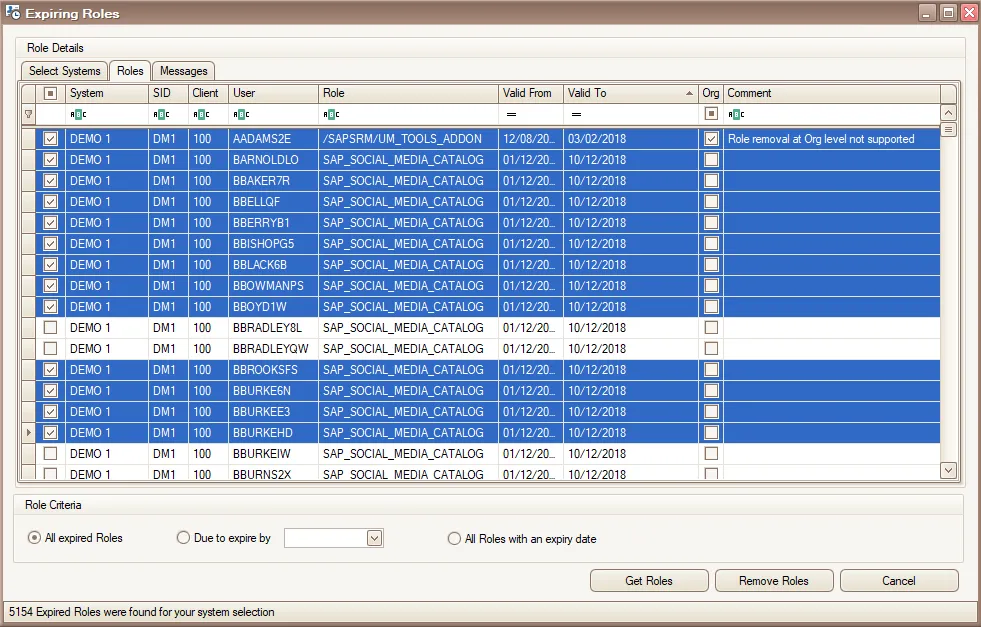
Filter the result columns, then select the assignments you want to remove.
Read and filter the results
Each row identifies an assignment using System, SID, Client, User and Role.
- Valid From and Valid To are the assignment’s dates. These let you distinguish an expired assignment from one that is still valid but ends within your chosen cutoff.
- Org is selected for an assignment maintained through SAP organizational management. Its Comment says Role removal at Org level not supported. Maintain that assignment through organizational management in SAP.
- Comment also shows the outcome after a removal.
Use the filter row beneath the column headings to narrow the results, for example by user, role or client. Select the row checkboxes for the assignments you want to act on.
Composite roles appear as their own assignments. Their inherited component roles are omitted from this search. To see a user’s full role list and composite indicators, use Role Assignment.
Remove selected roles
Remove Roles removes the selected role from the named user in that client. It removes all of that user’s assignment periods for the role, including periods outside the search cutoff. To change one period while retaining another, use the Mass Changes role worksheet.
For a composite role, the removal includes its component roles and any direct assignments of those roles.
- On Roles, select the rows for the user-and-role combinations to remove.
- Choose Remove Roles. Removal starts immediately.
- When processing finishes, read Comment beside each selected row. Role successfully removed. identifies a completed removal.
- Open Messages for the system/client messages and the user and role named in each removal result.
Rows marked Org are skipped with a message explaining that their assignments are maintained at organizational level. Other selected rows can still be processed.
The result rows remain visible with their comments after removal. Choose Get Roles again to retrieve the remaining assignments for your criteria.
Read failures and partial results
Results cover the clients marked Finished checking.. on Select Systems. Check failed. See Messages. identifies a client whose search failed. Open Messages for the corresponding details. To retry, select the failed clients and choose Get Roles again.
For removal results:
- Role successfully removed. means the role is no longer assigned to that user.
- Role was not removed. See messages for more info. means the role was still assigned after the attempt.
- Role removal failed identifies an error during removal or the subsequent read of the assignment.
- Removal was not attempted because an earlier client operation failed. means processing stopped before that row. Work in other clients can still complete.
- Operation cancelled.. identifies a row that had not started when you stopped removal.
After an error that leaves the outcome uncertain, open Role Assignment for the affected account to see its assignments. Retry the remaining user-and-role combinations. Include the Messages details when contacting support about a persistent failure.
Stop a search or removal
Choose Cancel while an operation is running. The status changes to Cancelling operation... Active SAP work finishes, and work that has not started is skipped.
Completed removals remain applied. After removal stops, read the row comments and Messages before choosing the remaining work. Choose Cancel again when the operation has stopped to close the window.