 Delorion
Assign email addresses
Generate and edit email proposals, replace a domain, assign a shared address or remove addresses from selected SAP accounts.
Applies to userXpress 2.0.0.0
Download PDF
- This pageAssign email addresses
- This sectionUsers
- Full manualuserXpress documentation
On this page
Update the email addresses of selected SAP accounts. Generate addresses using a naming convention, or replace the domain while keeping the rest of each address.
The Assign E-Mail window shows the existing and proposed address for each account. You can edit individual proposals and exclude accounts before applying the changes.
Open email assignment
- In the Global User Table, select the accounts to update.
- Choose Users → Change → Assign → Email...
- Wait for userXpress to read the selected accounts’ email addresses from SAP. The Users tab shows the selection.
- Choose an Action under E-Mail options, then follow the corresponding procedure below.
The selection can span several systems and clients. Each row represents one account in its own client.
Generate addresses from account details
- Leave Action set to Generate from pattern.
- In Pattern / address, enter the complete pattern, including the domain. For example,
$first.$last@example.comgeneratesalex.morgan@example.comfor Alex Morgan. - To insert an account field, place the cursor in the pattern, choose a token under Fields and choose Insert field.
- Choose any required Name formatting options.
- Choose Review Changes. The Changes tab shows the generated addresses beside the existing addresses.
- Resolve or exclude proposals, then choose Apply Changes.
The suggested patterns end at @. Complete the domain before choosing Review Changes.
Pattern fields
| Field | Value used |
|---|---|
$first, $last |
First name and last name. |
$firstinitial, $lastinitial |
First character of the first name or last name. |
$user |
SAP user ID. |
$alias |
Account alias. |
$email |
Complete existing email address. |
$local |
Text before @ in the existing email address, preserving its case. |
$domain |
Text after @ in the existing email address, preserving its case. |
Token capitalization controls the result, except for $local and $domain. For example, $first produces alex, $FIRST produces ALEX, and $First produces Alex.
Examples:
$firstinitial.$last@example.comproducesa.morgan@example.com.$user@example.comuses each account’s user ID.$aliascopies an alias that already contains a complete email address.$local@example.comkeeps each existing address’s local part and changes its domain.
Patterns use the names and aliases loaded in the Global User Table. If those details have changed in SAP, refresh the accounts before opening email assignment.
A missing field value produces a message for that account. Enter a complete address in its Proposed email cell, or exclude the account.
Name formatting
All three options start clear and affect the first-name and last-name tokens, including their initials:
- Remove spaces in names joins name parts:
Mary JanebecomesMaryJanebefore capitalization is applied. - Remove punctuation in names removes punctuation such as apostrophes and hyphens:
O'NeilbecomesONeil. - Remove accents in names removes accent marks:
JosébecomesJose.
For example, $first.$last@example.com with all three options selected turns Mary Jane O’Neil into maryjane.oneil@example.com.
Replace an email domain
Use Change domain only to keep the part before @ exactly as it is.
- Set Action to Change domain only.
- Enter the replacement in New domain, for example
example.com. - To change addresses from one domain only, enter that domain in Only replace domain. Leave it empty to include all existing domains in the selection.
- Choose Review Changes, then choose the proposals to apply.
- Choose Apply Changes.
For example, replacing old.example.com with example.com changes Alex.Morgan@old.example.com to Alex.Morgan@example.com. Addresses from other domains remain unchanged when Only replace domain is filled in. Accounts without a valid existing address appear under Messages.
Set one specific address
Use Set specific address for an individual account or for accounts that share a mailbox.
- Set Action to Set specific address.
- Enter the complete address in Pattern / address.
- Choose Review Changes.
- Where sharing is intentional, select Allow shared for the affected proposals. Select their Apply checkboxes to include them.
- Choose Apply Changes.
The entered address is used literally, including its capitalization.
Remove email addresses
- Set Action to Remove address.
- Choose Review Changes. Proposed email is empty for the selected accounts.
- Clear Apply for accounts whose address must remain.
- Choose Apply Changes, then OK in Remove email addresses.
Accounts whose email field is already empty are Unchanged.
Choose the changes to apply
Review Changes prepares the proposal. Apply Changes sends the included changes to SAP.
Use the Changes tab to make the final choices:
- Apply includes that account. Rows with an issue start excluded. After correcting one, select Apply to include it.
- Valid indicates that the proposal passes the address and conflict checks.
- Current email is the address read from SAP when the window opened. Proposed email is editable.
- Status explains whether the row is Ready, Unchanged, Excluded, Conflict or Shared address approved, or gives the reason it cannot be applied.
- Show issues only filters the display to invalid proposals. Messages also lists their explanations.
- Exclude selected rows clears Apply for the highlighted rows.
Apply Changes becomes available when at least one included address changes and every included proposal is valid. Filtering the display does not change the Apply selections.
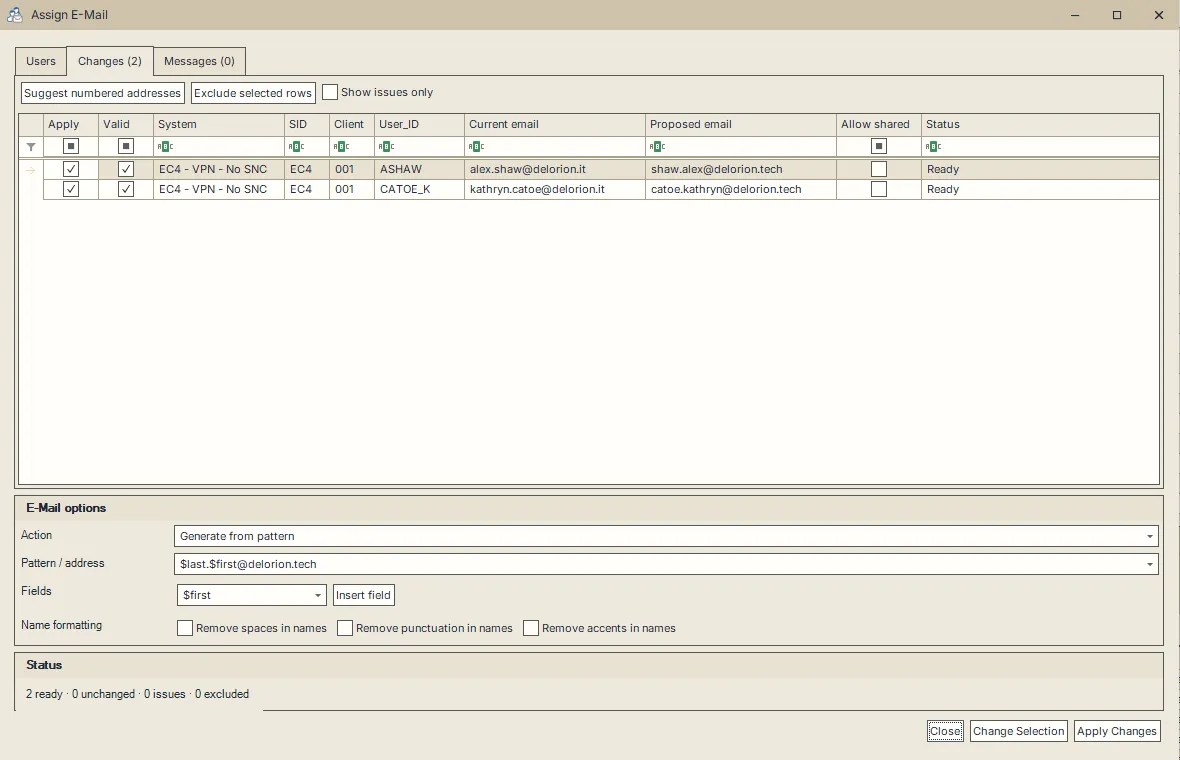
Both proposals are Ready and selected for application. The pattern puts the last name before the first name.
Resolve duplicate addresses
Conflict checking compares proposals and the accounts already loaded in the Global User Table, including rows hidden by its filters. It compares addresses without regard to capitalization, within each system/client. Load the relevant accounts before opening email assignment when you need them included in this comparison.
For a Conflict, choose the outcome you need:
- Edit Proposed email to use another address, then select Apply.
- Choose Suggest numbered addresses to find available proposals such as
alex.morgan2@example.com. Suggestions use the same address for matching user IDs across the selected clients, so this command can also change other proposals. Explicitly excluded rows remain excluded. - Select Allow shared when the accounts are meant to share the address, then select Apply.
- Leave Apply clear to keep that account’s existing address.
Change the options again
Choose Change Selection to return to Users and the email options. Change the action or pattern, then choose Review Changes again. The accounts remain those selected when you opened the window.
Addresses you edited manually are retained when you generate another proposal. Select Replace edited addresses to regenerate those addresses too. Remove address clears the proposals regardless of manual edits.
Read the result or resolve an issue
After Apply Changes, the window closes and userXpress applies the changes, then refreshes the affected accounts in the Global User Table.
For SAP’s messages about an account, select that account alone, right-click and choose Full Message. For a row marked with an error or warning, hover over an ordinary text cell to read its explanation. A failure for one account does not undo successful changes to other accounts.
If the display refresh fails after an assignment, use Refresh for the affected account before repeating the assignment.
Messages in the proposal window identify accounts that need a different action:
- Multiple SAP email entries: maintain those addresses in SAP. Email assignment handles accounts with at most one email entry.
- Technical user: email assignment is unavailable for that account.
- Could not read current email from SAP: close and reopen email assignment to retry the read.
Choose Close to discard a proposal. While the initial SAP reads are running, Stop waits for active reads to finish and closes the window.