 Delorion
Architecture
Understand how userXpress connects to SAP, authenticates administrators and reads or changes SAP data.
Applies to userXpress 2.0.0.0
Download PDF
- This pageArchitecture
- This sectionTechnical Documentation
- Full manualuserXpress documentation
On this page
userXpress runs on the administrator’s Windows workstation and communicates directly with the selected SAP systems.
It uses the connection definitions maintained for SAP Logon: application server or logon group, system number, SAProuter route and SNC settings. No intermediary userXpress server is required for these SAP connections.
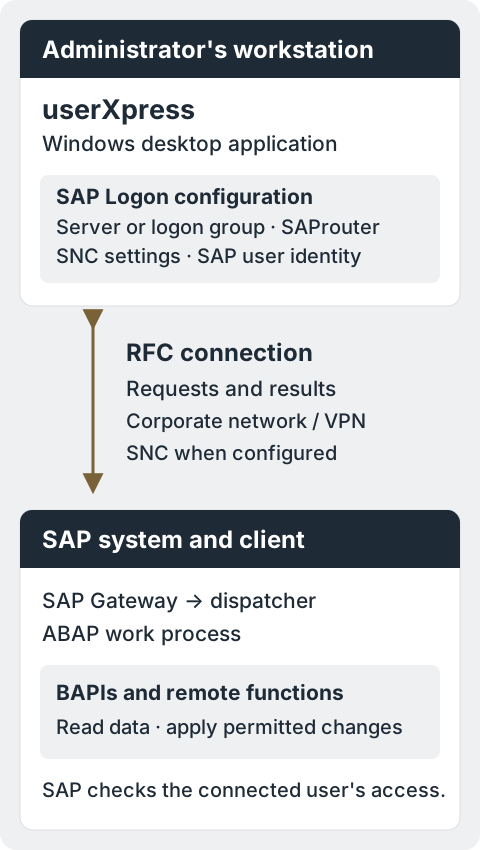
How userXpress connects to SAP
A remote function call (RFC) lets userXpress request an operation on the SAP system. SAP checks the connected user’s authorizations, executes the function and returns data or a result.
Many account operations use SAP Business Application Programming Interfaces (BAPIs). For example:
- Reading account details uses
BAPI_USER_GET_DETAIL. - Changing account details uses
BAPI_USER_CHANGE.
SAP identity and permissions
Each connection identifies a SAP system, client and logon user. The authentication method determines how that user signs in:
- Password authentication: the administrator supplies their SAP user ID and password for that client.
- SNC single sign-on: SAP maps the sign-on identity to a SAP user.
All requests run with that SAP user’s normal administration permissions: access to read user and role information and make the user changes assigned to the administrator. The same scope of permitted users, roles and activities applies when working through userXpress.
Connections and global tables
- The Control Panel lists the connections.
- The Global User Table combines users from the connected clients.
- The Global Role Table combines roles from the connected clients.
An account is identified by its system, client and user ID. For example, DEMO_USER in client 100 and DEMO_USER in client 200 are separate accounts. Changing one does not change the other.
Refresh and operation results
The tables show information retrieved from SAP. They do not continuously reflect changes made by other administrators.
- Refresh the relevant records when you need current values.
- After an operation, check its results for each target. One client can succeed while another fails.
- If a change succeeds but the refresh fails, the displayed information may be old. Check SAP before repeating the change.
SAP GUI and SNC
userXpress reads the SAP Logon configuration selected in Settings → Connections → SAP Logon configuration.
SU01 and PFCG open selected accounts and roles in SAP GUI while you continue working in userXpress. Set their shared window limit in Settings → Connections → SAP GUI.
Secure Network Communications (SNC) protects communication according to the connection’s quality-of-protection setting: authentication, integrity or encryption. SNC can also provide single sign-on when configured for that purpose.
Install your organization’s SNC provider, configure its identity and trust, and select its 32-bit library in userXpress. See Configure SNC.
Installation sequence
- Prepare the workstation using System requirements and compatibility. Install and configure SAP GUI and your SNC provider where required.
- Install userXpress. Start it under your normal Windows account, set the local passphrase and enter the license.
- Have your SAP security administrator assign SAP permissions for the work the administrator will perform.
- Configure the SAP connection. userXpress detects the SAP Logon configuration file automatically. Configure SNC if used, and connect one system/client.
What to configure on each workstation
Program files are installed for the machine. Passphrase, saved logons, queries and preferences belong to the Windows user.
Complete first-start configuration in that person’s Windows session, even when IT installs the program centrally.
The local passphrase unlocks userXpress and protects saved SAP logon credentials. SAP passwords or SNC/SSO authenticate the SAP connections. Resetting one does not reset the other. See Storage for storage locations and password-reset consequences.
Online Help opens in the browser. Support requests use the browser and the application to sign in and send the files the administrator approves.
Configure these HTTPS connections separately from SAP access. The network reference lists the destinations.