 Delorion
Role queries and search results
Save, reopen and update role queries, understand incomplete results, and rerun or clear role content filters.
Applies to userXpress 2.0.0.0
Download PDF
- This pageRole queries and search results
- This sectionGlobal Role Table
- Full manualuserXpress documentation
On this page
Save a role query when you repeat an access review or want to keep a useful combination of role-name, client and content conditions. A query can contain ordinary column criteria, a role content filter, or both.
Save and reuse a role query
- Apply the column conditions and role content filter you want to keep.
- Choose My Queries → Save current query….
- Enter a descriptive name, such as
Client 100 - finance role maintenance, and choose OK. - If the name is already used, confirm replacement to update it or choose another name to keep both definitions.
Choose the saved name under My Queries to reuse it. A query containing role content runs a fresh search against the connected SAP clients. A column-only query applies its saved table criteria.
Saved queries retain the conditions and the column-filter enabled setting. The matching roles are determined when the query runs. The menu icon and tooltip identify entries that include role content.
Change a saved query
- Choose its name under My Queries.
- Change the column criteria or open Content Filter to edit the content conditions.
- Apply the revised filter.
- Choose My Queries → Save changes to update the saved definition, or Save query as… to keep it under another name.
Modified in the query status means the working definition differs from the saved one. When you open another saved query, userXpress asks whether to save those changes. Choose Yes to save, No to continue without saving, or Cancel to keep working on the current query.
Rename or remove a saved query
Open My Queries → Maintain Queries, edit the description or select the query and choose Delete, then save the changes. Use this to keep a useful set of recurring reviews in the menu.
Understand the status
| Status | Meaning and next action |
|---|---|
| Unsaved query | The working definition has no saved name. Save it when you want to reuse it. |
| Modified | The working conditions differ from the saved definition. Use Save changes or Save query as… to keep the revision. |
| Role content filter active | The content result is part of the table’s enabled filter. |
| Role content filter paused | The table filter is disabled. Re-enable it to use its criteria again, then use Run again when the results need updating. |
| Results need updating | The table scope, connections or enabled column criteria have changed since the search. Choose Run again. |
| A match count | The completed search found that many matching roles. |
| Incomplete with confirmed and unverified counts | Some roles could not be decided. Open Details… before interpreting the list as matching roles. |
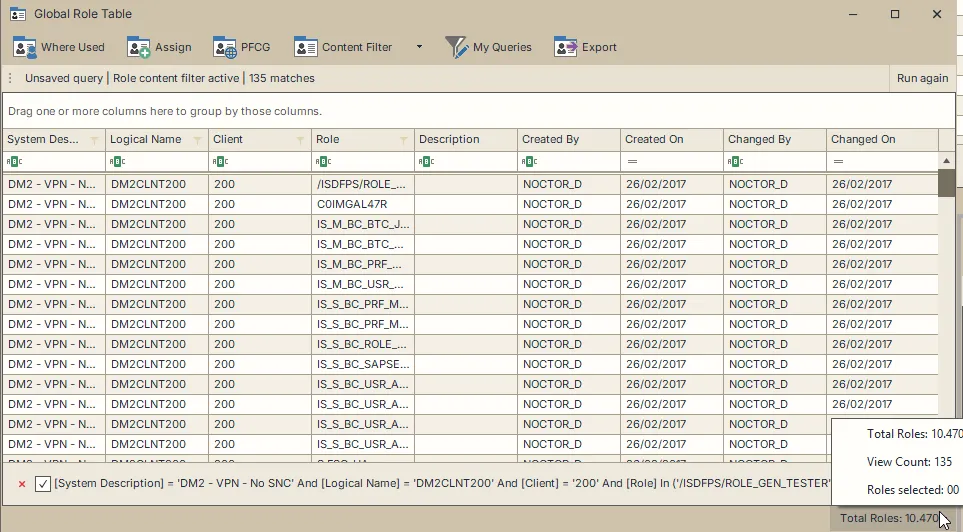
This completed search has 135 matches. Unsaved query means its definition has not been saved under a name.
Run again
Use Run again after changing a column filter, changing the connected clients or updating relevant role content in SAP.
- Set the ordinary column criteria for the roles you want searched.
- Choose Content Filter → Run again, or Run again on the query status bar.
- Read the new match count or incomplete-results message.
Enabled column criteria define the eligible roles before the content search. For example, a role-name filter limits the search to matching names in the loaded connected clients. To broaden the search, remove that column restriction and choose Run again.
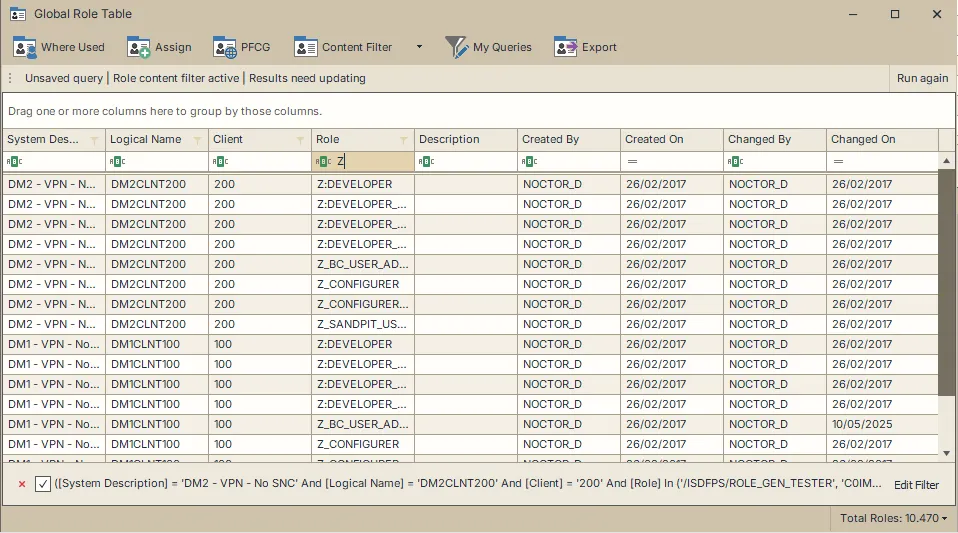
After changing the Role column filter, choose Run again to update the content results for the new scope.
The separate grid search box controls which rows you see. Use column criteria for the scope you want the content search to evaluate.
Understand incomplete results
A content search can confirm some matches while another role or client remains unreadable or unresolved. Unverified roles stay visible so that missing information is not treated as proof that they fail the query.
Choose Details… for the confirmed and unverified counts by system/client and the available failure messages. Correct the reported connection, SAP access or condition problem and choose Run again.
A negative condition also leaves unresolved content unverified. For example, a failed read cannot establish that a role lacks an authorization.
If no eligible client can be read, userXpress reports the failure and retains the previous query and results. Use the failure message to resolve the cause before running again.
Pause or clear
To pause filtering, clear the checkbox in the table’s filter panel. The query remains available, and the status shows Role content filter paused. Re-enable the filter to use it again.
Choose Content Filter → Clear role content to remove the content restriction while keeping the ordinary column criteria. This also clears the selected role rows. Use it when you want to return to the client or role-name list and start another content search.
The workbook guide explains how to exchange saved role content queries with other administrators.