 Delorion
View users' role assignments
Read and export the roles assigned to selected users, including validity dates and composite-role indicators.
Applies to userXpress 2.0.0.0
Download PDF
- This pageView users' role assignments
- This sectionRoles
- Full manualuserXpress documentation
Use Roles → Role Assignment to see which roles selected users have in their SAP clients. This is useful when comparing users’ access, investigating an unexpected assignment or preparing an assignment report.
Open the report
- In the Global User Table, select the accounts using their row checkboxes. You can select accounts from several clients.
- Choose Roles → Role Assignment. The progress window shows the clients being read.
- In User To Role Assignment, expand an account with the plus button beside its row to display its roles.
- Choose Close Report when you have finished.
The report reads role assignments from SAP when you open it. Open it again to retrieve changes made since that read.
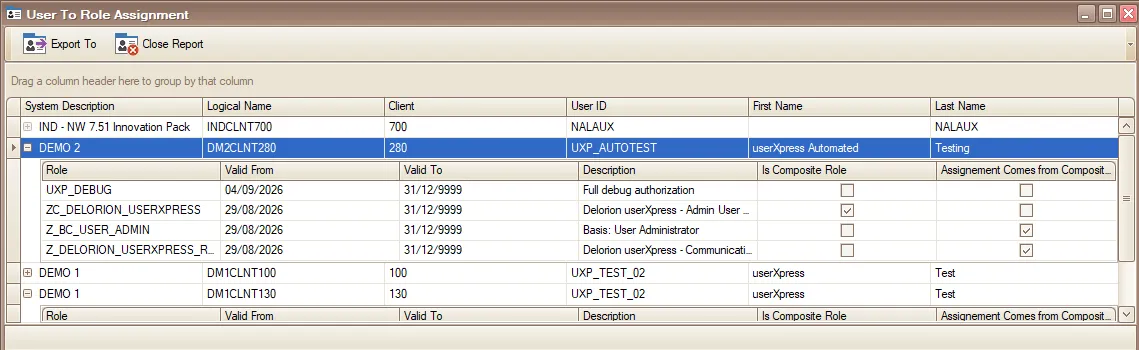
Expand an account to see the roles assigned in that system and client.
Read an account’s assignments
The account row identifies the System Description, Logical Name, Client and User ID. Logical Name identifies the connection, such as DM1CLNT100. First Name and Last Name come from the selected Global User Table row.
Each expanded role row shows:
- Role: the SAP role name.
- Valid From and Valid To: the assignment’s start and end dates. These are the role-assignment dates, not the account’s validity dates.
- Description: the available role description. A blank description means no text was returned for the report’s language.
- Is Composite Role: selected when the role contains component roles. A clear checkbox identifies a role with no component roles in the retrieved data.
- Assignement Comes from Composite Role: selected when SAP marks this assignment as inherited from a composite role. A clear checkbox means that composite-origin indicator is absent.
A composite role groups single roles. Assigning it gives the user its component roles through SAP’s user comparison. Maintain an inherited assignment through its composite role. See SAP’s explanation of composite roles.
The report includes expired and future-dated assignments. Use Valid From and Valid To to distinguish them from assignments valid today. An account with no retrieved assignments has no role detail rows.
Export the report
Use Export To to save the account-and-role list for further analysis or sharing.
- Choose Export To.
- Under Export Format, choose an available format:
- Excel 2007 - 2013 produces an
.xlsxworkbook. - Excel 97-2003 produces an
.xlsworkbook. - CSV produces comma-separated text.
- XML produces structured data. XML incl. Schema also includes the data structure.
- Excel 2007 - 2013 produces an
- Use the browse button beside Save As to choose the destination and filename.
- Choose OK. A confirmation identifies the saved file, then the export dialog closes.
Export includes all assignments retrieved for the report, including collapsed accounts and rows hidden by report filters. Each exported row combines an account with one role assignment. Accounts with no assignments have no rows in the exported file.
Incomplete report
When some reads fail or are stopped, a Roles message states how many selected users are included. It also gives the failed and unstarted counts. The report contains the completed reads.
To retry the missing accounts, close the report, select those accounts in the Global User Table and open Role Assignment again. If their assignments still cannot be read, include the Roles message when contacting support.
To add or remove assignments, follow Update role assignments.