 Delorion
Copy role assignments between users
Use an existing user's roles as the starting point for other accounts, while choosing whether to retain their existing assignments.
Applies to userXpress 2.0.0.0
Download PDF
- This pageCopy role assignments between users
- This sectionRoles
- Full manualuserXpress documentation
On this page
Use Copy Roles from user and Paste Roles when existing accounts need the same roles as another user. For example, add a colleague’s purchasing roles to a new team member without changing that person’s other assignments.
You can paste to accounts in several connected clients. With the default options, userXpress assigns the role names using the definitions already in each destination client.
Copy from one account
- In the Global User Table, select one source account using its row checkbox.
- Right-click that account and choose Copy Roles from user ‘ID’, where
IDis the source user ID. - Wait for Copying Roles from user to finish. userXpress keeps the retrieved assignment list for the next paste.
- Clear the source selection and select the destination accounts.
- Right-click and choose Paste Roles to ‘ID’ for one account or Paste Roles to selected users.. for several.
The Paste Roles window identifies the source user, system and client above Roles to paste. Paste to the following users lists the destination accounts.
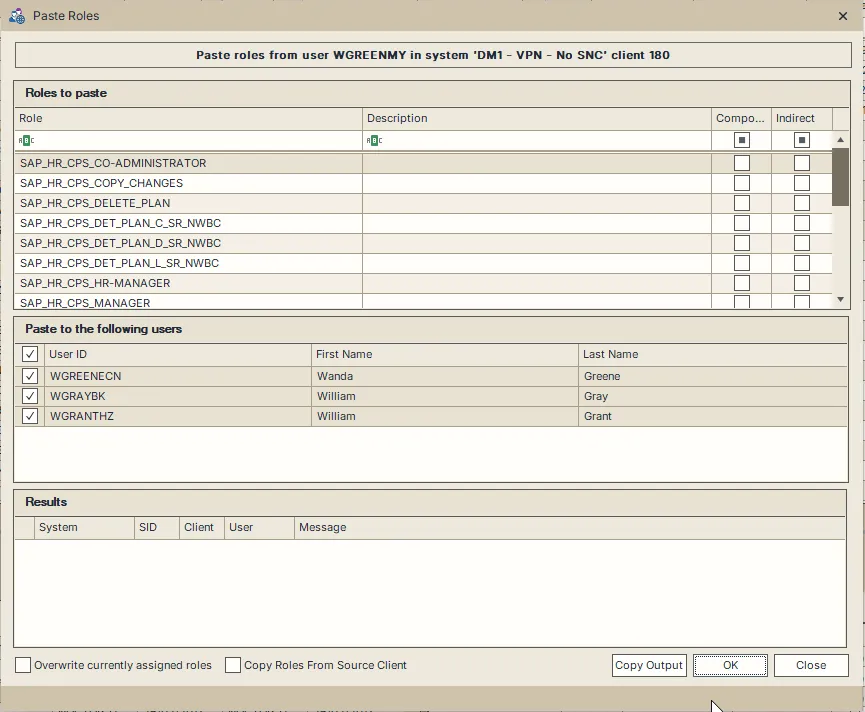
The destination list comes from your Global User Table selection. To change it, choose Close, change that selection and open Paste Roles again. Clearing a checkbox inside the dialog does not exclude that account from the operation.
To retrieve changes made to the source account since copying, repeat Copy Roles from user before opening the paste dialog.
Choose the roles and assignment behavior
Roles to paste shows the copied role names and descriptions:
- Composite identifies a role that contains component roles.
- Indirect identifies an assignment inherited from a composite role. With the default options, userXpress adds the composite role when it is included in the list and skips separately assigning its inherited components.
Use the filter row under the column headings to limit the roles to paste. All rows remaining visible are included when you choose OK. Highlighting one row does not limit the operation to that role.
New assignments start today and end on 31 December 9999. The source list includes expired and future-dated assignments, so pasting a role can make it valid immediately. For specific validity periods, use Update role assignments.
Both options below start clear.
Overwrite currently assigned roles
- Leave this option clear to retain each destination user’s existing assignments and dates. userXpress adds copied roles whose names are not already assigned. Use this to supplement access.
- Select this option to replace each destination user’s assignments with the roles being pasted, using the new validity period. Use it when the pasted list should become that user’s complete role list. Existing roles outside that list are removed.
With the default options, an existing role name keeps its destination dates even when that assignment has expired. Use the Mass Changes role worksheet to edit an existing validity period.
Copy Roles From Source Client
This option imports role definitions from the source client before assigning roles. Use it when the destination must receive the source definitions as well as the assignments. Read Copy the source role definitions before selecting it.
Apply the assignments
- Set the role filter and the options for the intended operation.
- Choose OK. userXpress processes the destination accounts.
- Read the status bar and Results when processing finishes. Each result identifies the system, client and user it concerns.
- Choose Copy Output to copy the result list to the clipboard, or Close to return to the Global User Table.
Paste Roles is complete means processing finished without reported errors. The original source account is skipped if it is also in the destination list. When no additional roles need assignment, Results shows The selected roles are already assigned to the user.
Each new operation replaces the previous Results list. Copy any results you need before choosing OK again.
Copy the source role definitions
Select Copy Roles From Source Client when you want to import the source client’s roles as part of the paste. A role definition contains the role’s authorization settings. Changing a definition affects its use in that destination client, including other users assigned to the role.
This option has broader scope than the role filter:
- The import includes every role in the copied source list whose Indirect indicator is clear, including roles hidden by the dialog’s filter.
- userXpress imports those definitions into each destination client, then generates the associated single-role profiles.
- The assignment stage adds every visible role, including roles marked Indirect and names already assigned to the destination user. These additions use today’s date through 31 December 9999.
- Overwrite currently assigned roles still determines whether the destination’s previous assignments are retained in the resulting list.
For a role-definition copy without assigning roles to users, use Copy roles between clients.
Resolve partial results
Paste Roles completed with errors means at least one import, generation or assignment operation reported a failure. Read Results for the affected client and account. Other accounts can still complete.
With Copy Roles From Source Client selected, a role-import or generation error appears as Problem importing or generating the role followed by its name. Assignment processing continues after these errors. A completed assignment therefore needs to be read alongside any definition or generation error for that client.
Assignment replacement clears the user’s role list before applying the prepared list. If the second step fails, the account can be left with missing assignments. Open Role Assignment for that account and use Update role assignments to restore the intended roles.
To retry affected accounts, close the dialog and select those accounts in the Global User Table. Use Copy Output to include the result messages when contacting support about a persistent failure.
Stop processing
Choose Close while processing is running to request cancellation. Active work finishes, and unstarted accounts are skipped. The dialog remains open so you can read Results.
Cancelled before this user was processed. identifies an unstarted account. Completed assignments and imported role definitions remain applied. After processing stops, choose Close again to leave the dialog.