 Delorion
User table columns: activity and status
Read account activity, locks, CUA distribution, license assignments and developer keys in the Global User Table.
Applies to userXpress 2.0.0.0
Download PDF
- This pageUser table columns: activity and status
- This sectionGlobal User Table
- Full manualuserXpress documentation
On this page
Use these columns to investigate a logon problem, find recently created accounts or identify where a CUA-managed account can be changed.
To display a hidden field, use Show Column Chooser. To show text beside the lock and online icons, enable Settings → Workspace → Show text with icons, save and restart userXpress.
Creation and logon activity
Created By and Created On
Created By identifies the SAP user that created the account. Created On is the creation date. Filter these columns to find accounts created by a particular administrator or during a particular period.
Both values come from the account’s SAP creation record. A blank means no value was loaded. For the account’s subsequent changes, use SAP user change documents.
Last logged in
The logon date and time recorded by SAP for the account. Use it when looking for accounts with older logon activity. A blank means SAP supplied no logon date.
SAP’s logon timestamp has exceptions that matter when deciding whether an account is still used:
- Background job execution does not always update it.
- For an account locked after failed password attempts, it can contain the time the lock was applied.
For SAP’s logon analysis, open SUIM → Users → By Logon Date and Password Change and read Date of Last Logon. The SAP report documentation explains these cases and the additional job-log evaluation.
Password Logon Date
The date SAP recorded for the account’s last logon using a password. Use it when investigating password use for an account that also uses single sign-on.
On a newly loaded row, a blank means SAP supplied no password-logon date or the connected system does not provide this field.
Failed Attempts
SAP’s counter of unsuccessful password logons. Filter for values greater than zero to find accounts with recorded failures, then read Lock Status to see whether SAP has locked them. A blank means the counter has not been loaded for that row.
To retrieve an updated counter, disconnect and reconnect the client. Users → Refresh leaves this counter unchanged.
In SAP, open SUIM → Users → With Unsuccessful Logons to investigate failed-password locks. SAP documents the report and its results.
Online
An Online icon means a session was found for the account when its session information was loaded. A blank means the row is not marked online.
Select the account and choose Users → Refresh to retrieve its session status. Use Send Message or Log User Off to contact users or end their sessions.
In SAP, AL08 displays users logged on across the system’s application servers. The same list is available through SM04 → System-Wide List. See SAP’s session-list reference.
Account locks
Lock Status
Use the lock indication to distinguish an administrator’s lock from a lock caused by failed password attempts.
| Displayed status | Meaning |
|---|---|
| Local Administrator | An administrator locked the account in this client. |
| Incorrect Login | SAP locked password logon after failed attempts. |
| Locked Globally by Administrator | The account has a global CUA lock. |
| Globally and Locally locked | Both the global CUA lock and a local administrator lock are set. |
| Locked by Administrator and Incorrect Logons | A local administrator lock and a failed-password lock are both set. |
An unlocked account has no lock icon. To change a lock in userXpress, follow Lock or unlock users. That procedure explains how the selected accounts determine whether the action changes a local or global lock.
SAP’s SUIM → Users → With Unsuccessful Logons report identifies administrator locks and failed-password locks, including CUA local and global combinations. See SAP’s user-report reference.
Password Lock On
The date SAP recorded for the account’s password lock. Use it with Lock Status and Failed Attempts when investigating a failed-password lock.
On a newly loaded row, a blank means SAP supplied no password-lock date or the connected system does not provide this field. Use Lock Status to determine the loaded lock state.
CUA
Central User Administration (CUA) distributes user data from a central SAP system to child systems. The CUA column identifies the account’s place in that arrangement and any distribution warning or error.
Point to the icon to read its explanation for the account:
- Template user: The account distributes user data to receiving systems and cannot log on to the central client.
- Standard CUA user in a child system: The account is managed through the central system. Field-distribution settings determine which changes can be made locally.
- CUA-controlled user in the central system: Changes made here are distributed according to the CUA settings.
- Distribution warning or error: SAP reported a problem when distributing the account. Open SCUL in the central system for the detailed message.
- Local user in a CUA system: The account is maintained in this client and is outside CUA distribution.
- Undefined: A usable CUA status was not retrieved. Open the account’s Full Message for any reported error.
A blank CUA cell means no CUA classification was loaded. Accounts in clients without active CUA have a blank cell.
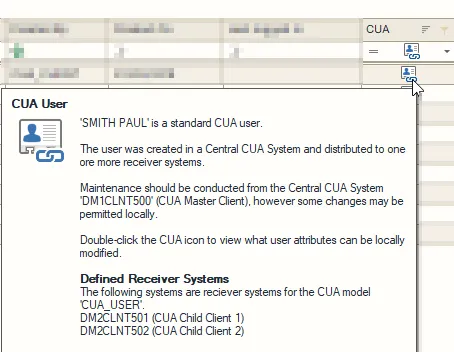
The tooltip identifies the account’s central system, distribution model and receiving systems.
Find where an account field is maintained
Use the distribution view before changing a CUA-managed account when you need to identify the responsible system.
- Double-click the account’s CUA icon while its client is connected. CUA Field Distribution opens.
- Read Central System, Receiving Systems and Client Role to identify the connected client’s place in the CUA model.
- In CUA Field Distribution Settings, find the field by Description or Technical Name. The marked column identifies its distribution rule.
Field Group groups related fields, and CUA Model identifies the distribution model.
- Global: Maintain it centrally. SAP distributes the value to child systems.
- Local: Maintain it in the child system. The change stays there.
- Proposal: The central system supplies the value when creating the account. Subsequent maintenance is local.
- Redistribute: Maintain it centrally or locally. A local change returns to the central system for distribution to the other child systems.
- Everywhere: Local changes stay in the child system. Central maintenance offers distribution to selected systems through SU01.
This window displays the settings. They are maintained in SCUM → User Distribution Field Selection in the central system. See SAP’s field-distribution reference for the SAP settings and distribution behavior.
For a distribution warning or error, open SCUL → Users in the central system and select the affected user and receiving system. The distribution log provides the result for the affected account data, roles and profiles.
License and development registration
License
The description of the contractual user type assigned directly to the SAP account. Use it to compare those assignments across accounts. userXpress displays the English description. A blank means no assignment or matching English description was loaded.
View or maintain the assignment in SU01 → License Data → Contractual User Type. The tab is abbreviated Lic. Data in some SAP interfaces. See SAP’s classification procedure.
For system measurement, open USMM → User Classification in SAP. The resulting classification includes values derived from reference users, roles or defaults, beyond the direct assignment shown in this column. SAP user-classification reference.
Developer Key
The developer registration key stored for the user in SAP. Use it when reviewing registered development accounts in systems that use SAP Software Change Registration (SSCR). A blank means no developer key was loaded.
For systems using SSCR, SAP accepts the developer key in the Access key dialog at first development use. The registration applies to that user in that system. See SAP’s developer-registration instructions.
Refresh and row messages
Select accounts and choose Users → Refresh to update their locks, dates, online status, CUA information and license descriptions.
To reload Created By and Failed Attempts, disconnect and reconnect the client. Reconnect after a date or developer key has been cleared in SAP, because a selected-user refresh can retain the previous value when SAP returns an empty value.
Rows with an operation error or warning use the colors configured in Settings. Point to a text cell, such as Last Name, to read the message. For one account’s detailed messages, select it alone and open Full Message from its right-click menu.
A gray row indicates an interrupted connection. Restore the connection before using that row for an account operation. For a reported connection or refresh failure, follow Troubleshooting.