 Delorion
Global User Table: menu and tasks
Choose user administration, role, query and export commands from the grouped Global User Table menu.
Applies to userXpress 2.0.0.0
Download PDF
- This pageGlobal User Table: menu and tasks
- This sectionGlobal User Table
- Full manualuserXpress documentation
On this page
Use the Global User Table to find and administer accounts across your connected SAP clients. Each row identifies an account by its system, client and user ID. The same user ID in two clients represents two separate accounts.
Filter the table to find the accounts you need, then select their row checkboxes before opening an account action. The grouped menu puts the commands under Users, Roles, Show Me, My Queries, Export and Other.
For field meanings, column layout and the corresponding SAP fields, see Account details and Activity and status.
Users
Lock, Unlock and Password
| Command | When to use it |
|---|---|
| Lock | Prevent new logons to the selected accounts while retaining their account data. |
| Unlock | Remove the applicable lock from accounts that should be available again. |
| Password → Initial Password | Give users a password intended for their next logon and password change. The dialog also offers unlocking. |
| Password → Productive Password | Set a productive password when that password behavior is required for the selected accounts. |
| Password → Deactivate Password | Disable password-based logon for accounts using another permitted authentication method. |
Follow Passwords and locks for the dialogs, options and SAP results.
Refresh
Choose Users → Refresh when you need up-to-date information about selected accounts, for example after another administrator has changed them in SAP.
- Select the accounts in the Global User Table.
- Choose Users → Refresh.
- Read the updated rows and any reported refresh errors.
The refresh reads the selected accounts from their respective clients. A refresh error means the table could not retrieve the new values for that account.
SU01
Choose Users → SU01 to open an account in SAP user maintenance. Select one row for the account you want to open. The command uses the first selected account when several rows are selected.
The workstation needs SAP GUI and a dialog-capable SAP logon for that client. See Open the user in SAP.
Change → Create
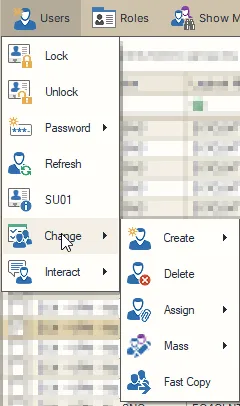
| Command | When to use it |
|---|---|
| Create User | Enter account details and choose the clients in which to create the account. See Create users. |
| Create Ranged User.. | Create a numbered series from an ID pattern, such as training accounts. See Create a numbered range. |
| Create From | Start a new account from an existing user’s data and choose what to copy. See Create From. |
Change → Delete
Use Users → Change → Delete when the selected SAP accounts are to be removed. The deletion dialog lists the targets and requires confirmation. See Delete accounts.
Change → Assign
Use these commands when one kind of detail needs updating for the selected accounts.
| Command | Purpose and procedure |
|---|---|
| Alias.. | Set an alternative account identifier. Assign an alias. |
| Email.. | Generate, edit, replace or remove email addresses. Assign email addresses. |
| Reference User.. | Assign a reference user available in the target clients. Reference users. |
| Security Policy.. | Apply a policy available in the selected clients. Security policies. |
| SNC Name.. | Assign an SNC identity directly or construct it from account details. SNC names. |
| Company Name | Set the company in the account’s address information. Company name. |
| Work Center.. | Update work-center information such as department or location. Work center. |
| Name Information.. | Update person and name fields. Name details. |
| Parameter ID | Maintain default parameter values for SAP transactions. Parameter IDs and update modes. |
| Usergroups… | Set the authorization-check group or change general memberships. Manage user groups. |
Change → Mass
Choose Multiple Change.. when the selected accounts need the same combination of changes, such as an unlock and a validity-date extension. See Make several account changes together for the steps and option meanings.
Use Mass Changes when you want to prepare different changes for different accounts in a workbook:
- Export Selected Users creates the update workbook from the selected accounts.
- Import User Updates opens the prepared workbook for validation and review before applying the updates.
Follow Update accounts from a workbook for the export, editing and review procedure. The workbook reference explains empty cells, fields and complete role/parameter lists.
Change → Fast Copy
Use Fast Copy to create a new user ID in the clients of selected source accounts. See Fast Copy for the source selection, copied properties and results.
Interact
- Send Message sends a message to selected users’ SAP sessions, for example before planned maintenance.
- Log User Off ends the selected users’ sessions. Use it when those sessions must be closed. Unsaved work in the affected sessions can be lost.
See Online users and messages for the recipient and session controls.
Roles
| Command | When to use it |
|---|---|
| Role Assignment | View and export the selected users’ assignments, including validity periods and composite-role indicators. |
| Expired Roles | Find assignments by their end dates across selected clients and remove roles that users no longer need. |
| Update Role Assignment | Add or remove assignments for selected users, with common or client-specific scope and validity dates. |
| Copy Roles.. | Copy role definitions between clients. |
The role assignment guide explains these workflows. To search the contents of role definitions, use the Global Role Table.
Show Me
Choose a ready-made filter for account status, inactivity or developer/license details. Show Me: predefined user filters explains every choice, including date cutoffs and the difference between Everyone and Clear All Filters.
My Queries
Save a filter when you need the same selection criteria regularly. Build and save user queries walks through Edit Filter, AND/OR groups, saving, reuse and Maintain Queries.
Export
- Export saves the filtered table as a report, including visible rows that are not selected. Use it to share or work with a user list. See Export the table.
- Export User Objects prepares selected users as input for Mass User Create. Use it when existing users are the starting point for a new creation workbook. See Start from exported user objects.
Other
Clear Errors
Choose Other → Clear Errors after reading operation messages when you want to clear those messages from the table before the next task.
Column Chooser
Choose Other → Column Chooser to show the available columns. Drag a column into the table header to display it, or drag a displayed header into the chooser to hide it. Use this to keep fields needed for the current task together.
Summary Info..
Choose Other → Summary Info.. for the loaded table’s total user-record count and distinct user-ID count. An ID present in several clients contributes several records but one distinct ID.
Copy To.. (right-click menu)
Right-click selected accounts and choose Copy To.., then a connected system and client, to create those user IDs in the destination. The dialog offers the source users’ roles and profiles or those of an existing target-client account. See Copy users between clients for the choices, copied details and results.
Copy and paste role assignments (right-click menu)
Select one source account, right-click its row and choose Copy Roles from user. Then select the destination accounts and use the right-click Paste Roles command. See Copy role assignments for the assignment choices.