 Delorion
Manage user groups
Set the authorization-check group and combine, replace or remove general group memberships for selected SAP accounts.
Applies to userXpress 2.0.0.0
Download PDF
- This pageManage user groups
- This sectionUsers
- Full manualuserXpress documentation
On this page
Use Usergroups… when users move to another administration group or need different group memberships for mass maintenance. You can update selected accounts across several SAP clients in one window.
SAP has two group assignments with different purposes:
- Logon Data: User group for authorization check assigns one group to an account. SAP uses this group to determine which user administrators can maintain the account.
- Groups: General user-group memberships assigns one or more groups for organizing users, for example for mass maintenance in SAP transaction SU10.
These correspond to the Logon Data and Groups tabs in SU01. SAP explains the distinction in User Groups.
Open Usergroup Management
- In the Global User Table, select the accounts to update.
- Choose Users → Change → Assign → Usergroups….
- If CUA Restriction appears, choose Yes to continue with the permitted accounts, or No to cancel and change the selection.
- Wait for Usergroup Management to load the available groups and the selected accounts’ assignments.
- Enable the section you want to change, then follow the corresponding procedure below. Enable both sections to change both assignments together.
The available groups are those that exist in every selected client. To use a group available in only some clients, close the window and select accounts from those clients.
With one account selected, its existing general memberships are checked in the group list. With several accounts selected, the group list starts unchecked. Assigned users shows how many selected accounts belong to each group.
Set the group for authorization checks
Use this section when an account should fall within a different user administrator’s area of responsibility.
- Select Change Logon Data usergroup.
- Choose the group from the list under Logon Data: User group for authorization check.
- In Selected users: Preview and results, Logon Data shows each account’s existing group and Proposed Logon Data shows the new group.
- Choose OK to apply the change.
The chosen group replaces the authorization-check group for every selected account. General group memberships stay as they are unless Change Groups memberships is also selected.
To remove the authorization-check group, select Change Logon Data usergroup and Clear Logon Data usergroup, then choose OK. An account without this group can be maintained by administrators authorized to maintain any user group. See SAP’s explanation of the authorization-check group.
Change general group memberships
- Select Change Groups memberships.
- In the group list, use Selected to check the groups for the operation.
- Choose the update mode described below.
- The lower table shows the resulting membership for each selected account and group.
- Choose OK to apply the changes.
Combine with existing groups
Use this default mode to add memberships while retaining each account’s existing groups. A group already assigned to an account is retained once.
For example, combining FINANCE with an account’s existing PROJECT_A membership leaves it in both groups.
Replace all existing groups with selected groups
Use this mode when all selected accounts should have the same complete set of general memberships. Groups outside the checked selection are removed from each account.
For example, replacing PROJECT_A and PROJECT_B with FINANCE leaves only FINANCE.
Choosing this mode with no groups checked removes all general memberships. The authorization-check group is controlled separately by Change Logon Data usergroup.
Remove selected groups
Use this mode to remove particular memberships and keep the others. Removing PROJECT_A from an account in PROJECT_A and FINANCE leaves FINANCE.
In Combine with existing groups or Remove selected groups, an empty group selection leaves general memberships unchanged.
Understand the preview and results
The lower table identifies each account by System, SID, Client and User. An account can have several rows, one for each existing or proposed general group:
- Usergroup identifies the general membership. A blank value accompanies No memberships.
- Current is checked when the account belongs to that group before the proposed change.
- Resulting is checked when the proposed change leaves the account in that group.
- Change shows Add, Remove, Keep or No memberships.
- Logon Data and Proposed Logon Data show the existing and proposed authorization-check group. An empty value means no group is assigned.
- Result shows Pending or No change before you apply the operation, then the account’s result or error message.
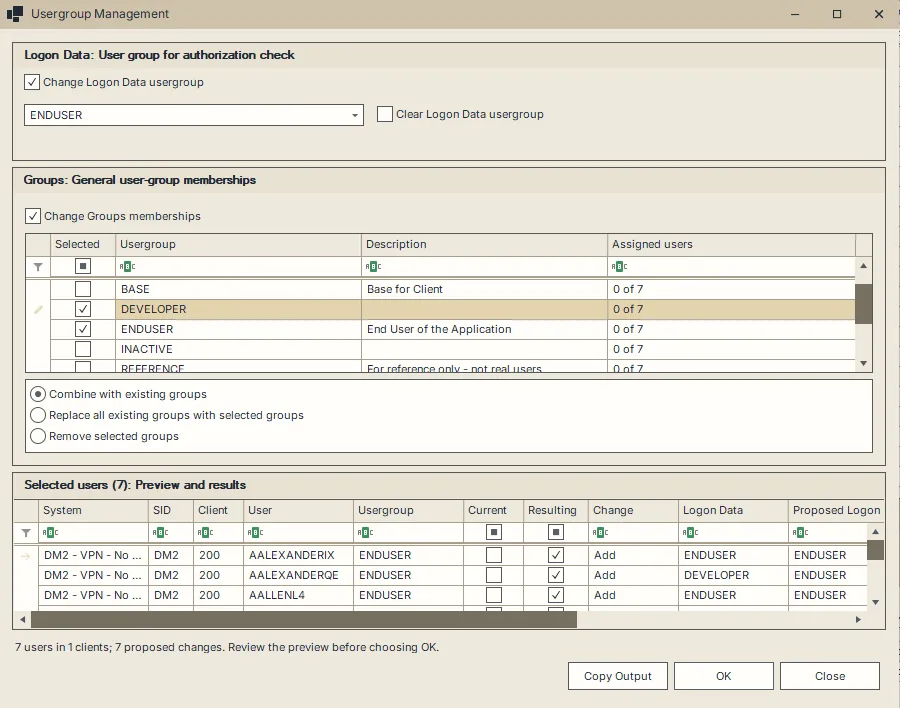
The preview shows seven proposed account changes. ENDUSER is the proposed logon group, and selected memberships will be combined with existing groups.
OK is enabled when the chosen options produce at least one change. Filtering either table changes which rows you see. The operation still uses the original account selection and the group checkboxes.
After processing, the status area says Usergroup changes finished. or reports that the operation finished with errors. Result contains each account’s outcome. Successful changes are reflected in the Global User Table. Choose Copy Output to copy the displayed preview/result rows to the clipboard.
Stop or resolve an interrupted change
Choose Stop while the operation is running. userXpress finishes active SAP work and refreshes, then reports completed accounts and those stopped before processing. Completed changes remain in SAP.
Use the message in Result to choose the next action:
- The user’s groups changed after loading: close and reopen Usergroup Management to load the new assignments before choosing the change again.
- Group readback failed or SAP’s group readback differs from the requested assignments: open the affected account in SU01 to see its saved groups before repeating the change.
- Display refresh failed: use Refresh for the affected account in the Global User Table. The SAP change and the display refresh have separate results.
- Assignments were not loaded: close the window and reopen it after resolving the reported connection or SAP error.