 Delorion
Search role content
Find roles by authorization object, field value or transaction, and build a content filter in the Global Role Table.
Applies to userXpress 2.0.0.0
Download PDF
- This pageSearch role content
- This sectionGlobal Role Table
- Full manualuserXpress documentation
On this page
Use a role content filter when you know the authorization or transaction you need to find but do not know which roles contain it. For example, find roles whose maintained authorizations cover activity 02 for a particular role name, or roles whose menus contain a transaction.
A column filter searches details already shown in the Global Role Table, such as role name or client. Content Filter reads the maintained content of the roles from the connected SAP clients.
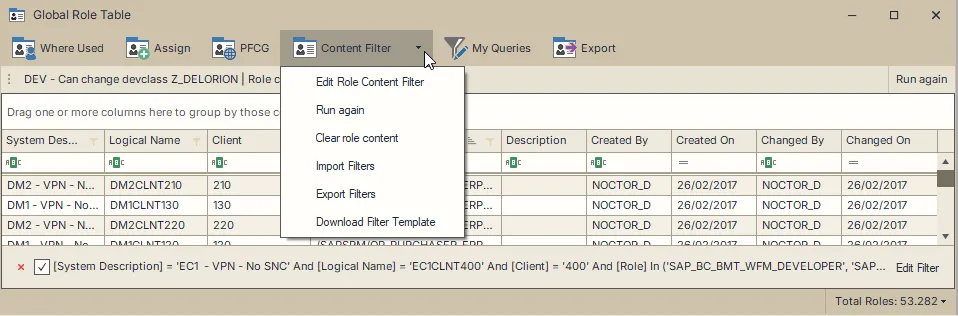
Choose what to search
| Condition | Use it to find |
|---|---|
| Authorization Object | A specific object and the values maintained in its fields. Keep related field requirements inside the same object condition. |
| Transaction authorization (S_TCODE) | Transaction codes covered by the role’s maintained transaction authorizations. |
| Menu transaction | A transaction listed in the role menu, for example when locating roles that provide a particular menu entry. |
For a composite role, search its member single roles to inspect their authorizations. The content search evaluates each role’s own maintained data. To investigate a particular user’s assignments, use Where Used or the user role assignment report.
Find roles containing an activity
This example finds roles with an S_USER_AGR authorization covering activity 03.
- Connect the SAP clients you want to search and load their roles in the Global Role Table.
- Use ordinary column filters to narrow the scope when appropriate, for example to one client or a role-name prefix.
- Click Content Filter, or open its menu and choose Edit Role Content Filter.
- Add a condition using the group’s plus button. Click its field selector and choose Authorization Object.
- Click the object name. Search for
S_USER_AGR, then double-click the matching row or press Enter. You can also enter the exact name with Equals selected and choose Use. - In that object’s field conditions, choose ACTVT.
- Click the comparison and choose Covers value. Enter
03in the value cell. - Leave the other field values empty when they should not restrict this search.
- Choose Apply to run the search, or OK to run it and close the editor.
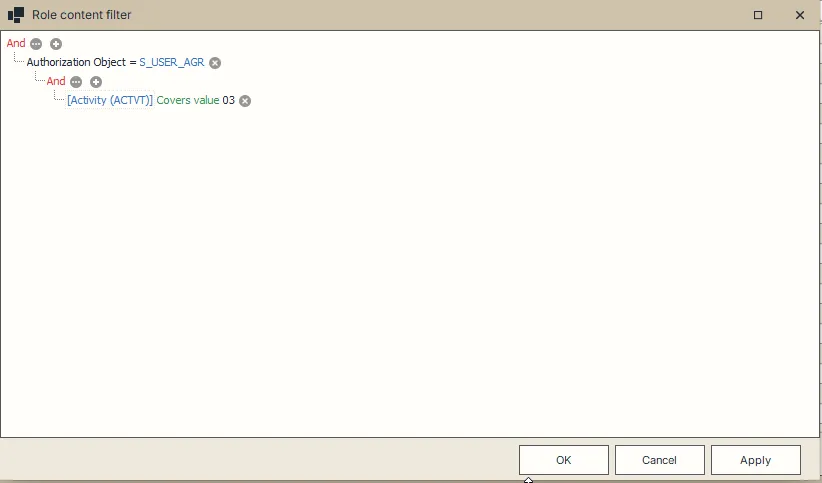
The table shows the result for the eligible roles. An authorization containing 03, a range covering 03, or unrestricted activity coverage can satisfy this condition. The comparison guide explains how Covers value differs from Equals.
Choose fields and values
Click a field name to choose one of the fields belonging to the selected object. The selector shows technical codes and available descriptions. Search either column to locate a field.
For a value, type the SAP code directly or use the search button beside the value. Press F4 to open the available-value lookup. Double-click a suggestion, or select it and press Enter, to insert its code. Escape closes the lookup and keeps the value you had entered.
Preserve leading zeros in codes, for example 03. For role content comparisons, 03 and 3 are different values. Descriptions help you choose the code, while the query uses the code itself.
Unused field rows can stay empty. They are left out when you apply the filter. Enter at least one field value for each object condition. After changing an object or field, enter its dependent values again so the condition describes the newly selected field.
If SAP metadata is incomplete, the lookup explains which suggestions are unavailable. You can enter known codes directly. If the editor reports that a field does not belong to the chosen object, select the correct field or connect a client that provides its definition before applying the query.
Require related values in one authorization
Suppose you need ACTVT to cover 02 and ACT_GROUP to cover Z_FINANCE within the same S_USER_AGR authorization.
- Open the filter from the preceding example.
- Change ACTVT → Covers value to
02. - In the same object condition, set ACT_GROUP → Covers value to
Z_FINANCE. - Set the group containing those two fields to And.
- Choose Apply or OK.
Each matching role must contain an authorization where both field requirements hold together.
| Maintained content in an example role | Result |
|---|---|
One authorization contains ACTVT 02 and ACT_GROUP Z_FINANCE. |
Matches both requirements. |
One authorization contains ACTVT 02 and ACT_GROUP Z_SALES. |
Does not match the required role name. |
One authorization contains 02 with Z_SALES, and a second contains 03 with Z_FINANCE. |
Does not match. Neither authorization contains the required combination. |
Keep the two fields inside one object condition. Two separate object conditions can be satisfied by different authorizations in the role.
Combine alternatives and groups
Use And for requirements that must all hold, and Or when any alternative is sufficient. Click a group’s operator to change it. Use Add Condition to add another condition at that level, or Add Group to place a group inside it.
For example, to find change activity for either Z_FINANCE or Z_SALES within one authorization:
- Keep the
S_USER_AGRobject condition. - Keep ACTVT → Covers value → 02 in its And group.
- Add an Or group inside the same object.
- Move the role-name choice into that group by removing the earlier ACT_GROUP condition and adding ACT_GROUP → Covers value → Z_FINANCE inside Or.
- Add ACT_GROUP → Covers value → Z_SALES to that Or group.
- Apply the query.
The definition reads:
Authorization Object = S_USER_AGR
  And
    ACTVT covers 02
    Or
      ACT_GROUP covers Z_FINANCE
      ACT_GROUP covers Z_SALES
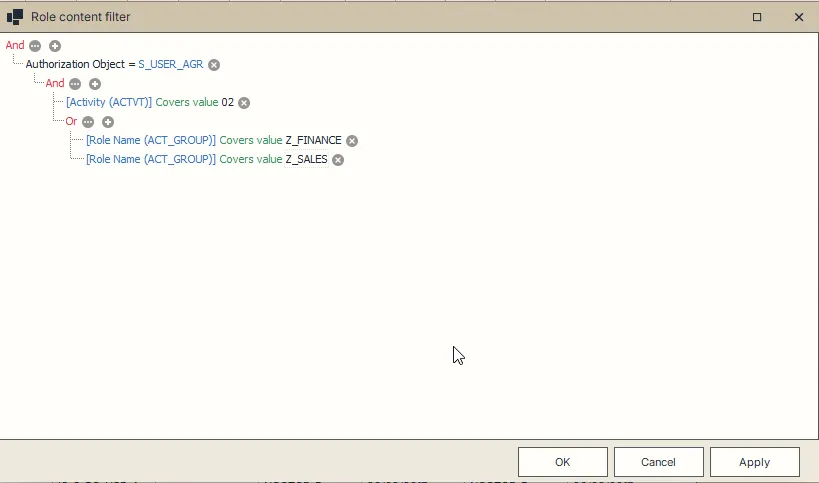
A role qualifies when one authorization contains activity 02 together with at least one of the two role-name values.
Combine objects and transactions
Add conditions to the top-level group when they describe separate requirements for a role. For example, find roles with a VA01 or VA02 menu entry and transaction authorization covering VA01:
- Set the top group to And.
- Add Transaction authorization (S_TCODE) with Covers value
VA01. - Add a group beneath the top And and set it to Or.
- In the Or group, add Menu transaction, Equals,
VA01. - Add another Menu transaction, Equals,
VA02to the same group. - Apply the query.
A role with the VA02 menu entry and S_TCODE value VA* matches. A role with the menu entry but no matching transaction authorization does not match this query.
Use the menu condition to locate navigation entries and the transaction authorization condition to inspect maintained S_TCODE values. Whether a user can complete a transaction also depends on that user’s other required authorizations.
Exclude a combination
Use a negative group when you need roles that do not contain a particular combination. For example, place an object condition for S_DEVELOP and activity 02 inside a Not And group containing just that object condition. This reverses the result for the whole object condition.
A negative field comparison has a narrower meaning: it applies to the field within an existing authorization. To exclude an entire object/field combination, negate the enclosing object condition as in the example.
An unreadable or unresolved role remains unverified even under negation. See Understand incomplete results.
Apply, OK and Cancel
- Apply runs the edited definition and keeps the editor open.
- OK runs the definition and closes the editor.
- Cancel closes the editor and discards edits made since the last application of the filter. Results already produced by Apply remain in the table.
After applying a content filter, select the result rows needed for your next task. The search clears the previous row selection.
To keep the definition, save it under My Queries. To share it with another administrator, export the saved filter.