 Delorion
Delete accounts
Remove selected SAP accounts, choose the confirmed targets and interpret completed, failed or stopped deletions.
Applies to userXpress 2.0.0.0
Download PDF
- This pageDelete accounts
- This sectionUsers
- Full manualuserXpress documentation
On this page
Use Delete to remove accounts that are no longer required, for example temporary accounts after a training session. If the account should remain but its access needs to be suspended, use Lock.
Delete removes the account from SAP. The confirmation list lets you exclude accounts before submitting the deletion.
Deletion in a CUA landscape
For accounts managed by Central User Administration (CUA), delete through the central client. Deletion there also applies to the user’s accounts in the CUA child systems. This scope is described in SAP’s Identity Management APIs guide, page 25.
The userXpress confirmation list shows the selected accounts. A central CUA deletion can therefore affect child-system accounts beyond the rows in that list.
Choose the accounts and confirm
- In the Global User Table, select the accounts to delete.
- Choose Users → Change → Delete. Delete Users opens with the selected accounts checked for deletion.
- In the Delete column, clear the checkbox for any account that must remain.
- Enter the four confirmation characters exactly as displayed. Delete becomes available when the characters match.
- Choose Delete.
- If CUA Restriction appears, choose Yes to continue with the permitted accounts, or No to cancel the operation.
- If the productive-client confirmation appears, choose Yes to continue there or No to cancel.
Choose Close in Delete Users to return without deleting accounts.
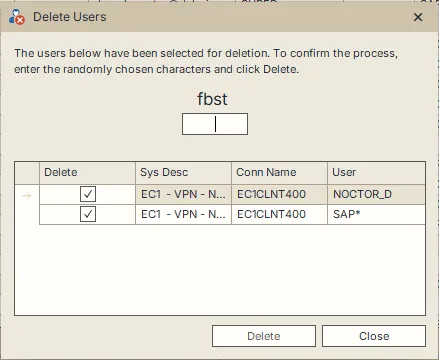
The confirmation field is empty, so Delete is unavailable. Clear a row’s Delete checkbox to exclude that account.
Read the outcome
When SAP confirms a deletion, userXpress removes that account’s row from the Global User Table. The status bar reports the number deleted, for example Deleted 3 of 4 confirmed users.
An account whose deletion was rejected or could not be confirmed remains in the table with an error or warning. Point to an ordinary text cell in its row to read the explanation. To see returned SAP messages, select that account alone, right-click and choose Full Message.
Successful deletions remain in effect when another account fails. For an explicit SAP rejection, resolve the reported error and select the remaining accounts for another attempt.
If the message says deletion could not be confirmed, open the account in SAP to establish whether it still exists before retrying. That message identifies an unresolved outcome, rather than a confirmed rejection.
For central CUA deletions, userXpress also refreshes the corresponding accounts in connected child systems. If that display refresh fails, refresh the affected child-system rows. The refresh error does not reverse a completed deletion.
Stop a running deletion
Close the progress window using its X button to request a stop. userXpress waits for active SAP calls to finish, then displays their results. Calls that have already deleted accounts are not undone.
Rows marked Deletion cancelled before the SAP call started. were not processed. Other unprocessed accounts can retain their previous row message.
After a stop, use the accounts still listed in the table to choose any further deletion. The status-bar totals do not include every unprocessed account.